


Windows 11 includes several built-in security features that can protect your computer without requiring additional antivirus software. However, some settings deserve special attention because they protect against malware, ransomware, phishing, unauthorized access, and data theft.
Here are the Windows 11 security settings you should enable or verify on your PC.
Keep Microsoft Defender Real-Time Protection Enabled
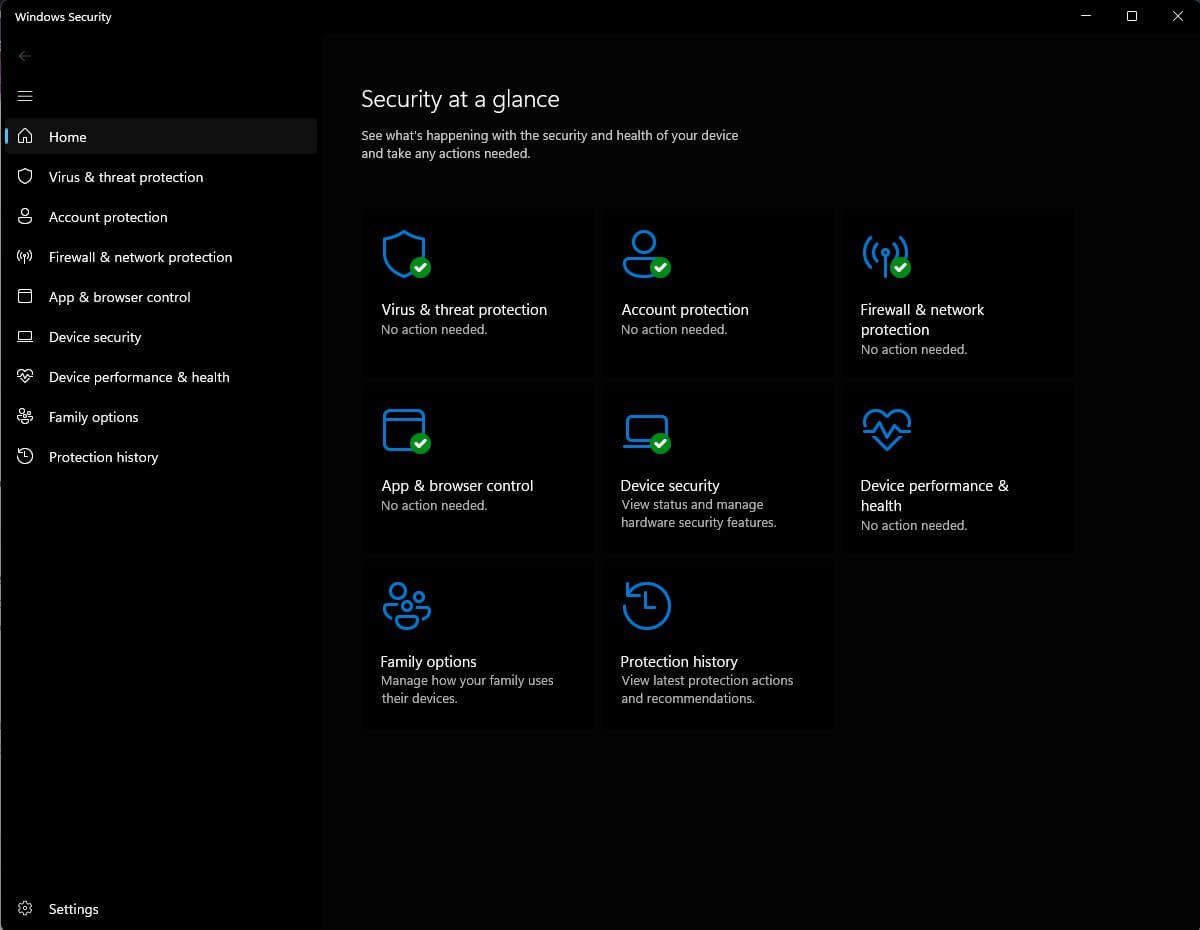
Microsoft Defender Antivirus provides real-time protection against malware and other threats. Open Settings > Privacy & security > Windows Security > Virus & threat protection and select Manage settings. Make sure Real-time protection, Cloud-delivered protection, and Automatic sample submission are enabled where available. Microsoft says Defender combines antivirus protection with other Windows security features to protect against current and emerging threats. Avoid disabling real-time protection unless you have a specific troubleshooting reason.
Turn On Tamper Protection
Tamper Protection helps prevent malicious applications from changing important Microsoft Defender security settings. You can find it under Windows Security > Virus & threat protection > Manage settings. Turn Tamper Protection on. This is particularly useful because malware may attempt to disable security protections before carrying out an attack.
Enable Windows Firewall
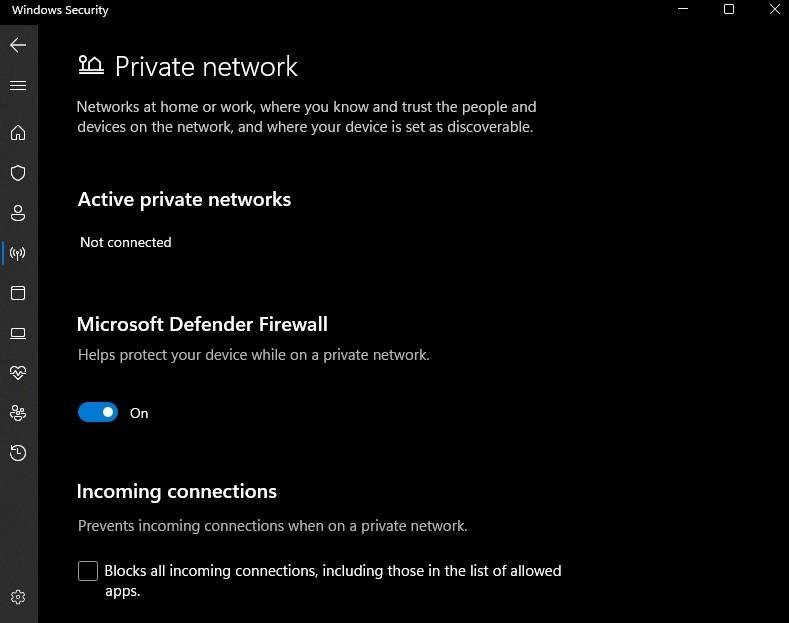
Windows Firewall monitors network traffic and helps block unauthorized connections to your computer.
Go to: Settings > Privacy & security > Windows Security > Firewall & network protection
Check that the firewall is enabled for your active network profile. Microsoft recommends keeping Windows Firewall enabled because turning it off can leave your computer more vulnerable to unauthorized access.
Enable Microsoft Defender SmartScreen
SmartScreen helps protect you from malicious websites, phishing attempts, suspicious downloads, and potentially unwanted applications.
To check the SmartScreen settings, you need to go to: Windows Security > App & browser control > Reputation-based protection

Make sure options such as Check apps and files and SmartScreen protection are enabled. Microsoft describes SmartScreen as protection against phishing, malicious websites, malware applications, and potentially dangerous downloads.
Check Core Isolation and Memory Integrity
Memory Integrity, also known as Hypervisor-Protected Code Integrity, uses virtualization-based security to help protect important parts of Windows from malicious or vulnerable drivers. Go to Windows Security > Device security > Core isolation. If Memory integrity is available, consider enabling it. Before enabling it on an older PC, check for incompatible drivers because some hardware or software may not work correctly with the feature.
Make Sure Secure Boot Is Enabled
Secure Boot helps prevent unauthorized software and rootkits from loading during startup. Windows 11 supports Secure Boot through modern UEFI firmware. Press Windows + R, type msinfo32, and check Secure Boot State. It should say On. Windows 11 PCs also require TPM 2.0 as part of Microsoft’s security requirements, and TPM supports features such as Windows Hello and BitLocker.

Enable Device Encryption or BitLocker
Encryption protects your files if you lose or steal your laptop or PC. Depending on your Windows edition and hardware, look under: Settings > Privacy & security > Device encryption. Windows 11 Pro users may also have access to BitLocker Drive Encryption. Microsoft recommends keeping your BitLocker recovery key backed up, because it may be required to recover access to an encrypted drive.

Use Windows Hello and Automatic Locking
Instead of relying only on a password, use Windows Hello with a PIN, fingerprint, or facial recognition when supported. Also configure Windows to require sign-in after you have been away from the PC. This is particularly important for laptops used in offices, cafés, airports, and other public locations.
Final Checklist
For a safer Windows 11 PC, verify these settings:
✅ Microsoft Defender Real-Time Protection
✅ Tamper Protection
✅ Windows Firewall
✅ Microsoft Defender SmartScreen
✅ Memory Integrity
✅ Secure Boot
✅ TPM 2.0
✅ Device Encryption or BitLocker
✅ Windows Hello
✅ Automatic screen locking
✅ Windows Update
Security settings can vary depending on your Windows edition, hardware, and organization policies. Microsoft’s Windows Security documentation is the best place to check feature availability and detailed configuration guidance.
External resources: Microsoft: Windows Security · Microsoft: Device Security · Microsoft: Windows 11 and Secure Boot · Microsoft: BitLocker Overview