


Table of Contents
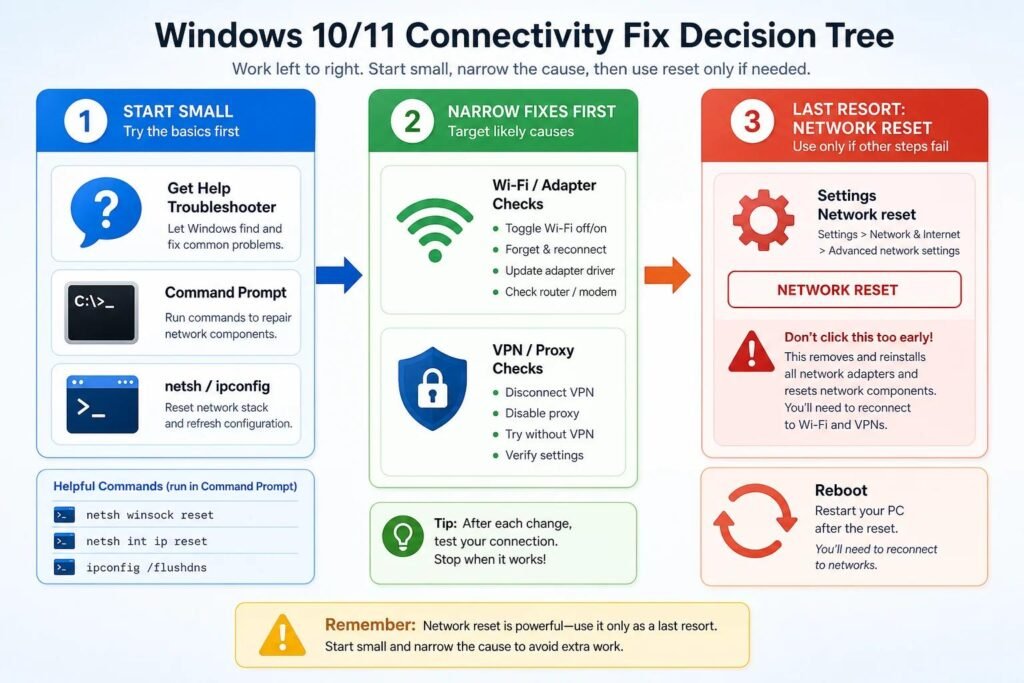
How to Troubleshoot Windows Internet Problems Step by Step When your Windows PC suddenly loses internet access, especially when you need to work, join a Teams meeting, browse the web or use cloud services. The good news is that most Windows Internet problems you can diagnose and fix even if you are not a networking guru.
Your Wi-Fi, an Ethernet cable, the router, DNS, TCP/IP settings, a network adapter driver, VPN software, or your Internet Service Provider (ISP) could be the cause of the problem. The article is a step-by-step guide to troubleshooting Internet problems on Windows. It starts with the simplest solutions, then moves on to more advanced troubleshooting.
1 Determine Where the Problem Is
The first step is to identify whether the problem is with your PC, local network, router, or ISP.
For example, suppose your Windows 11 laptop cannot open websites. Take your phone and connect it to the same Wi-Fi network.
- Phone and laptop both have no internet: The problem may be the router, modem, or ISP.
- Phone works but laptop does not: The problem is probably related to Windows or the laptop’s network configuration.
- Only one website doesn’t work: The problem may be related to that website or DNS rather than your internet connection.
This simple test can save considerable troubleshooting time.
2 Check Wi-Fi and Airplane Mode
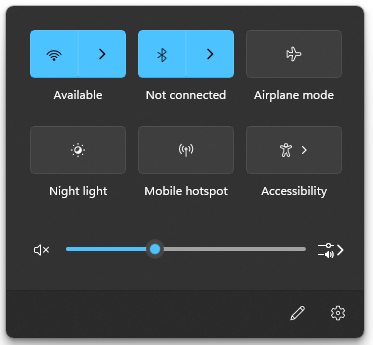
Fist click network icon on the Windows Taskbar to check network connectivity. Verify that Wi-Fi is turned on and it is connected to your wireless network. If the Wi-Fi turn on then Wi-Fi icon will be showing as blue. if it is showing as gray that means your Wi-Fi is not enabled.
Also check that Airplane mode not enabled. Go to Settings → Network & internet → Airplane mode. Make sure Airplane mode is disabled.
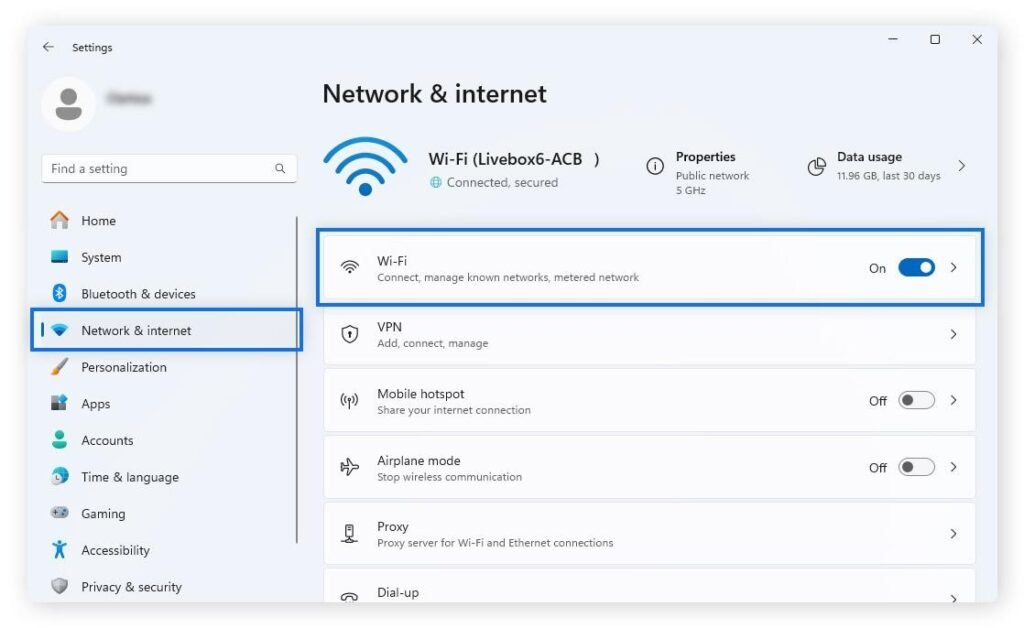
If the Wi-Fi network appears but Windows won’t connect, try disconnecting and reconnecting. Microsoft also recommends forgetting the wireless network and connecting again.
How to forget and reconnect Wi-Fi network. Go to: Settings → Network & internet → Wi-Fi → Manage known networks
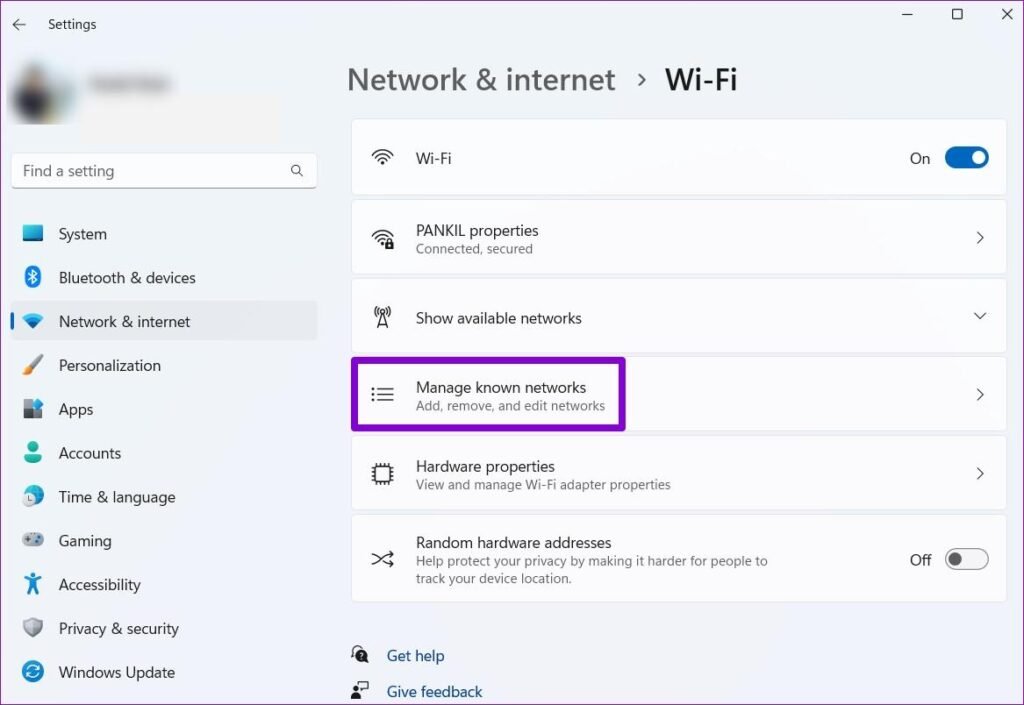
Select your network and choose Forget. Then select the Wi-Fi network again, enter the password, and reconnect. This can resolve problems caused by a corrupted or outdated saved wireless configuration.
3 Restart Your Router and Modem
Sometimes the Windows PC isn’t the problem at all.
Restart your networking equipment:
- Turn off or unplug the router.
- Turn off or unplug the modem if you have a separate modem.
- Wait approximately 30 seconds.
- Power the modem back on.
- Wait until its connection indicators stabilize.
- Power on the router.
- Wait a few minutes.
- Connect your Windows PC again.
Restarting the equipment forces it to establish a new connection with the ISP and can resolve temporary connectivity problems.
4 Test Ethernet Instead of Wi-Fi
If you’re using Wi-Fi but still no internet then disconnect from Wi-Fi and connect the PC directly to your router using an Ethernet cable if possible. This will be an excellent diagnostic test.

If Ethernet works but Wi-Fi doesn’t work, the problem is mostly related to:
- Wi-Fi adapter
- Wireless driver
- Wireless interference
- Wi-Fi configuration
- Router wireless settings
If Ethernet also fails, investigate the Windows network configuration, router, or ISP connection. I recommends checking the Ethernet cable and trying another cable when troubleshooting wired connections.

5 Run Windows Network Troubleshooter
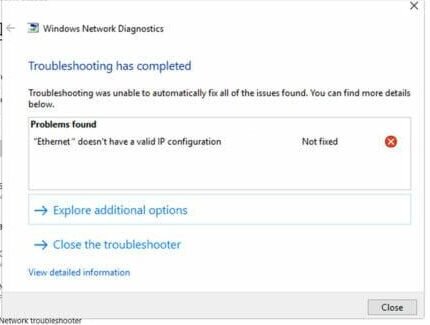
Windows has a built-in network diagnostics tool. In Windows 11 go to Search and type “Find and fix network problems”. Click Next and Windows automatically find any issue relevant to network. After diagnostics complete you will show the result.

You can also open network diagnose by right click network icon on the system tray and click “Diagnose network problems”. From there, review your connection status and available troubleshooting options. The troubleshooter isn’t guaranteed to solve every problem, but it is a useful first diagnostic step.
6 Check Your IP Address
A computer normally receives an IP address from your router through DHCP.
To check the IP settings open Command Prompt and run:
ipconfig
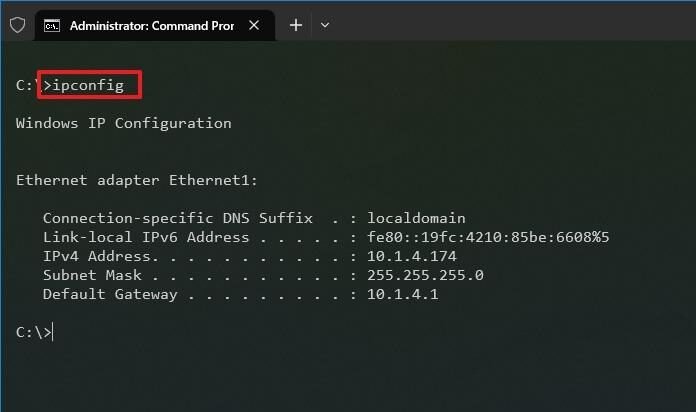
Look for your network adapter and check the IPv4 address. An address such as 192.168.1.25 is typical for a private home network. If Windows has an address beginning with 169.254.x.x, it may indicate that Windows couldn’t obtain an IP address from the DHCP server. Microsoft specifically identifies this as a useful clue when diagnosing connectivity problems.
You can attempt to obtain a new address using:
ipconfig /release

ipconfig /renew
Then test the connection again.
7 Reset TCP/IP and DNS
Windows networking problems can sometimes be related to the TCP/IP stack or DNS cache.
Open Command Prompt as Administrator and run these commands one at a time:
netsh winsock reset

netsh int ip reset

ipconfig /release

ipconfig /renew

ipconfig /flushdns
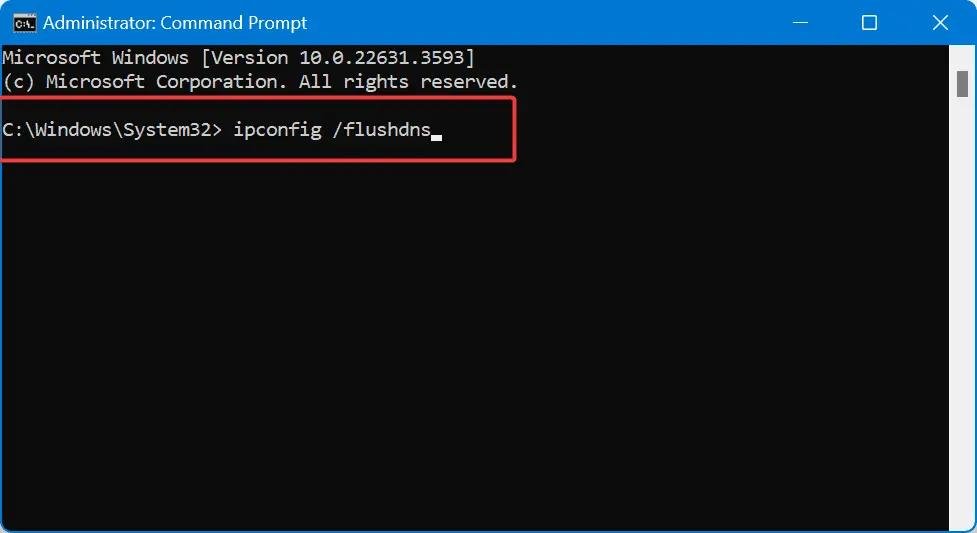
Restart your computer afterward. These commands reset Winsock and TCP/IP components, renew the DHCP address, and clear the local DNS resolver cache. This sequence as part of its Windows network troubleshooting guidance.
8 Troubleshoot DNS Problems
DNS, or Domain Name System, converts domain names such as example.com into IP addresses. If your internet connection works but websites won’t load, DNS may be part of the problem.
For example, you might see browser messages such as:
- DNS_PROBE_FINISHED_NXDOMAIN
- ERR_NAME_NOT_RESOLVED
- Can’t find the server
- This site can’t be reached
DNS problems can have several causes, including incorrect DNS records or local DNS resolution issues.
First try:
ipconfig /flushdns
You can also test connectivity to a known IP address and compare that with a domain name.
For example: ping 1.1.1.1
and: ping google.com
If the IP-address test works but domain-name resolution fails, DNS deserves further investigation.
9 Use Ping to Find the Problem
The ping command is one of the simplest networking diagnostic tools in Windows.
First run:
ipconfig
Find the Default Gateway.
For example:
Default Gateway : 192.168.1.1
Then run: ping 192.168.1.1

In this example screenshot Default Gateway is 192.168.8.1 then you need to run ping test to 192.168.8.1
If you receive replies, your PC can communicate with the router. If there is no response, investigate the local connection, Wi-Fi adapter, Ethernet cable, or router. I recommends using a ping test to help determine whether a Windows PC can communicate with its Wi-Fi router.
10 Check Your Network Adapter
If Windows cannot connect to Wi-Fi or Ethernet, check the network adapter.
Press: Windows + X → Device Manager → Network adapters
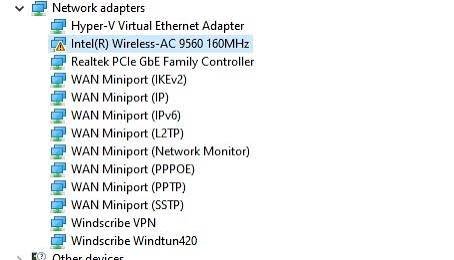
Look for your Wi-Fi or Ethernet adapter. If it has a warning icon, there may be a driver or hardware problem.
You can try:
- Disable the adapter
- Enable it again
- Update the driver
- Restart Windows
- Uninstall the adapter and restart Windows
Notes that uninstalling the network adapter and restarting can cause Windows to reinstall the adapter driver, although you should have a suitable driver available first.
11 Check VPN and Proxy Settings
VPN applications and proxy configurations can interfere with internet access. If the internet stopped working after connecting to a VPN, disconnect the VPN and test again.
Also check: Settings → Network & internet → Proxy
Make sure an unexpected manual proxy isn’t configured. Business users should be especially careful here because VPNs, security software, proxy servers, and corporate network policies may be intentionally configured.
12 Try Windows Network Reset
If you’ve tried everything else and the connection is still broken, Windows provides Network Reset.
In Windows 11, go to: Settings → Network & internet → Advanced network settings → Network reset
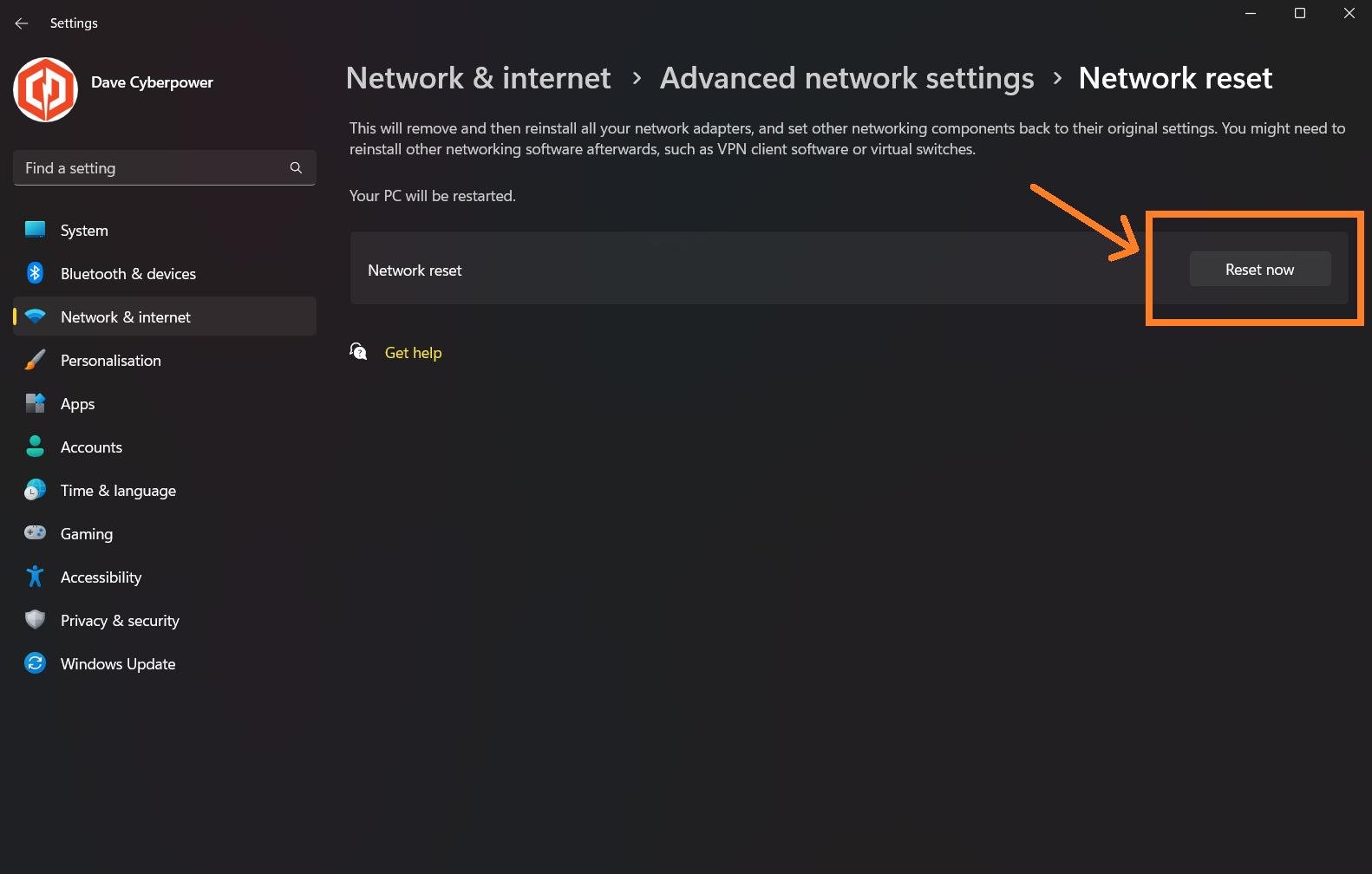
Select Reset now.
‘Network Reset’ removes installed network adapters and their settings, then reinstall them after the computer restarts. Since this process can also affect VPN clients, virtual switches, and other networking software, I recommend using it as a last resort.
When to Contact Your ISP
If all devices connected to the same router are unable to access the internet, the issue may not lie with your Windows computer. In such cases, it is advisable to contact your ISP.
Check:
- Router/modem status lights
- ISP outage information
- Fiber or cable connection
- Account/service status
- WAN connection
If your Windows PC can communicate with the router but cannot reach the wider internet, recommends checking the modem/ISP side of the connection and looking for a service outage.
13 Final Thoughts of Troubleshoot Windows Internet Problems
You do not always need expert networking knowledge to troubleshoot Windows internet issues. The key is to proceed from the simplest checks to more advanced solutions. Start by determining whether the problem is limited to your computer or affects the entire network. Then, check your Wi-Fi or Ethernet connection, restart the router, verify the connection and IP address, reset TCP/IP and DNS, inspect the network adapter, and finally, consider a network reset. Most importantly, do not immediately alter advanced settings or replace hardware; a simple restart, IP renewal, DNS flush, or driver fix might be enough to restore your connection.
For official Windows troubleshooting procedures, Microsoft’s Wi-Fi troubleshooting guide and Ethernet troubleshooting guide are useful references.
Recommend to read Windows 11 Security Settings You Should Enable
External Sources: