

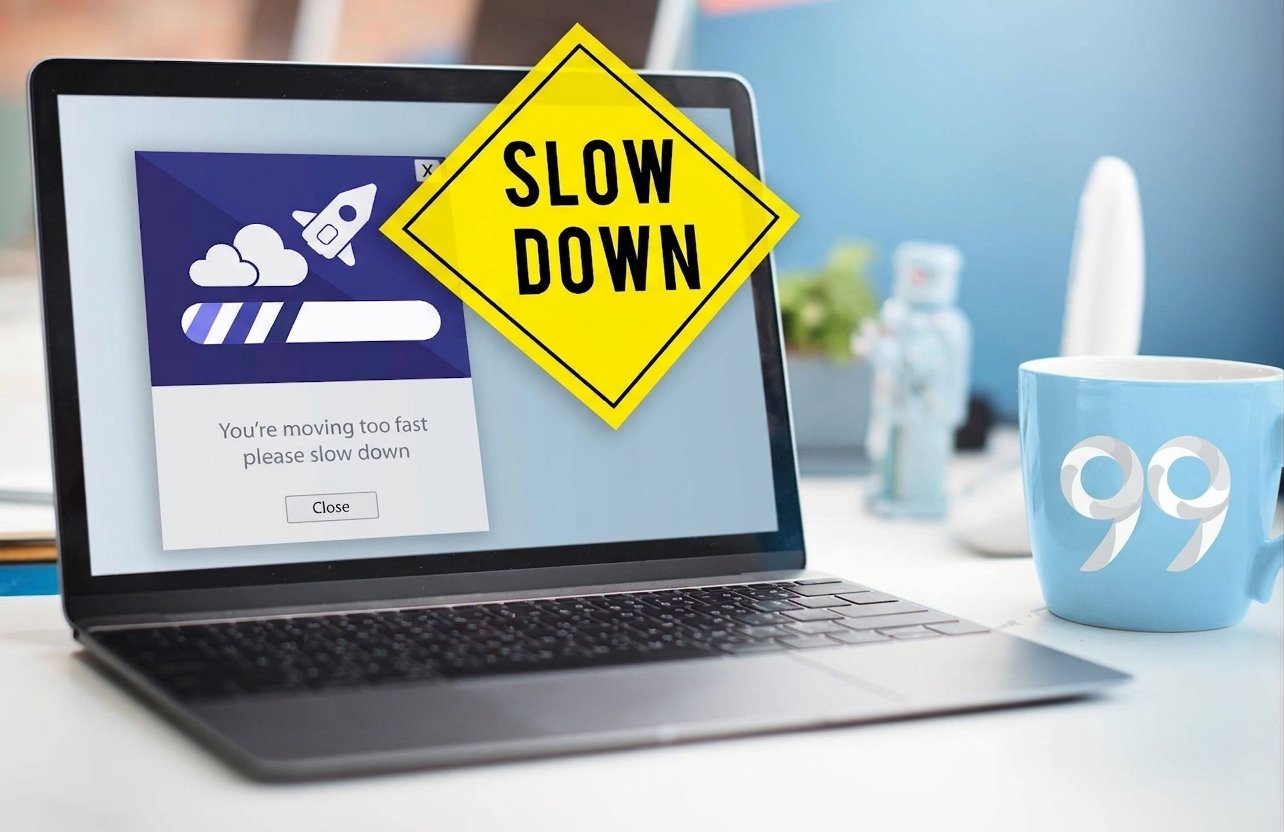
Does your Windows 11 computer take too long to start? Do several applications automatically open every time you turn on your PC? These programs might be contributing to your slow startup experience.
Many Windows applications configure themselves to launch automatically when you sign in. Although this can be convenient, having too many unnecessary applications running at startup can consume system resources and make your computer feel slower.
The good news is that Windows 11 includes built-in tools that let you control which applications start automatically.
In this guide, you’ll learn how to disable startup apps in Windows 11 using Settings and Task Manager, identify applications with a high startup impact, and troubleshoot programs that continue opening automatically.
Why Do Startup Apps Affect Windows 11 Performance?

Startup apps are programs configured to launch automatically when you sign in to Windows.
For example, you might have Microsoft Teams, Spotify, Discord, OneDrive, or other applications configured to open automatically.
Some of these applications are useful, especially if you use them every day. However, others might run in the background even when you don’t need them.
When several applications launch together, they can compete for your computer’s CPU, memory, and disk resources.
This can cause:
- Longer waiting times after signing in.
- More applications running in the background.
- Higher memory and CPU usage.
- Increased battery consumption on laptops.
- Slower performance immediately after logging in.
Disabling unnecessary startup applications can reduce this workload and make your Windows experience feel more responsive.
Method 1: Disable Startup Apps Using Windows 11 Settings
The easiest way to manage startup applications is through the Windows Settings app.
You don’t need additional software or administrator-level troubleshooting tools for ordinary startup app settings.
Follow these steps:
- Press Windows + I to open Settings.
- Select Apps from the left-hand menu.
- Click Startup.
- Windows will display applications that can be configured to launch automatically.
- Find an application you don’t need immediately after signing in.
- Switch its toggle from On to Off.

That’s it. Windows will no longer automatically launch that application through its registered startup entry when you sign in.
You can repeat these steps for other unnecessary applications.
Tip: If you cannot find a particular application, use the Settings search box and search for “Startup apps”.
Method 2: Disable Startup Apps Using Task Manager
Task Manager is another excellent option, particularly when you want to identify which applications have the greatest impact on startup performance.
Unlike the simple toggle list in Settings, Task Manager provides additional information about each startup application.
Here’s how to use it:
- Press Ctrl + Shift + Esc to open Task Manager.
- Select Startup apps from the left-hand navigation menu.
- Review the list of applications.
- Look at the Startup impact column.
- Select an unnecessary application.
- Right-click it and choose Disable.

You can also select an application and use the Disable option in the Task Manager toolbar.
The application will remain installed on your computer. Disabling it only prevents its registered startup entry from launching automatically.
Understanding Startup Impact in Task Manager
Windows provides startup impact measurements to help users understand which applications consume more resources during startup.
Here’s what the different labels mean:
| Startup impact | Meaning |
| High | More than 1 second of CPU time or more than 3 MB of disk activity |
| Medium | Between 300 ms and 1 second of CPU time, or corresponding medium disk activity |
| Low | Less than 300 ms of CPU time and less than 292 KB of disk activity |
| Not Measured | Windows doesn’t have enough measurement data |
| None | The startup application is disabled |
If you’re trying to improve startup performance, begin by reviewing applications marked High.
However, don’t disable an application simply because it has a high impact. Consider whether you actually need it and what it does before changing its startup behavior.
Which Startup Apps Should You Disable?
Not every application needs to start automatically with Windows.
For most everyday users, applications that are only needed occasionally are good candidates for disabling.
Here are some examples:
| Application type | Recommendation |
|---|---|
| Spotify | Disable if you don’t need it immediately |
| Discord | Disable if you open it manually |
| Gaming launchers | Disable if you rarely use them |
| Microsoft Teams | Optional, depending on your work routine |
| Adobe utilities | Review based on your requirements |
| OneDrive | Keep enabled if you rely on automatic file synchronization |
| Antivirus software | Keep enabled |
| Audio and touchpad utilities | Generally keep enabled |
| Graphics driver utilities | Review carefully before disabling |
These are general recommendations, not universal rules. Different applications may register multiple startup components, and disabling one entry doesn’t necessarily disable every background service associated with that application.
Important: Avoid disabling Windows security components, antivirus software, essential hardware utilities, or unfamiliar system processes without first understanding their purpose.
Method 3: Remove Applications from the Windows Startup Folder
Sometimes an application doesn’t appear in the usual Startup apps list.
This can happen because some desktop applications use Windows Startup folders rather than the standard registered startup application mechanism.
Windows provides two startup folders:
- Current user startup folder: Applications launched automatically for your Windows account.
- All users startup folder: Applications configured to launch for users of the computer.
Here’s how to check them.
Step 1: Open the Current User Startup Folder
- Press Windows + R.
- Type shell:startup.
- Press Enter.
- File Explorer will open the Startup folder.
- Review the shortcuts inside the folder.
- If you identify an application you don’t want to start automatically, delete its shortcut.

Step 2: Check the Startup Folder for All Users
- Press Windows + R again.
- Type shell:common startup.
- Press Enter.
- Review the shortcuts displayed in the folder.

Be careful when removing shortcuts from the all-users folder because the change can affect other Windows accounts on the computer.
Only remove shortcuts you understand and no longer need.
Note: Removing a shortcut from the Startup folder does not uninstall the application. It only removes that particular automatic launch shortcut.
How to Enable a Startup App Again
What if you disable an application and later decide that you want it to open automatically?
You can easily reverse the change.
Using Settings:
- Open Settings.
- Select Apps.
- Select Startup.
- Find the application.
- Switch its toggle back to On.
Using Task Manager:
- Press Ctrl + Shift + Esc.
- Select Startup apps.
- Find the disabled application.
- Right-click it.
- Select Enable.
The application can now launch automatically at sign-in again.
What If Windows 11 is Running Slow to Start after these settings?
Disabling unnecessary startup applications can help, but it isn’t a complete solution for every slow-startup problem.
If your computer still takes a long time to become usable, consider these additional checks.
If your Windows 11 PC is still running slowly after managing startup applications, there may be other factors affecting its performance. We’ve also covered this in our previous guide, [How to Make Windows 11 Faster: 15 Proven Ways to Improve Performance], where you’ll find 15 practical tips to help improve your computer’s overall speed and responsiveness. Check it out for more ways to get the best performance from your Windows 11 PC.
1. Check Your Available Storage
Low disk space can contribute to Windows performance problems.
Go to: Settings → System → Storage
Review your available storage and remove unnecessary temporary files where appropriate.
2. Check Windows Updates
Outdated Windows components and drivers can sometimes contribute to performance problems.
Go to: Settings → Windows Update
Check for available updates and install appropriate updates for your device.
If you encounter problems while checking for or installing Windows updates, don’t worry. We’ve also prepared a helpful guide, [How to Fix Common Windows Update Problems], covering practical solutions to common update issues. Read our guide to troubleshoot Windows Update errors and get your PC back on track.
3. Check Your Computer’s Resource Usage
Open Task Manager using Ctrl + Shift + Esc.
Select the Processes tab and review CPU, Memory, and Disk usage.
If a particular application consistently consumes significant resources, investigate that application rather than randomly disabling system processes.
4. Consider Your Storage Hardware
A computer using an older mechanical hard drive may take longer to start than a comparable system using an SSD.
If your PC still has a traditional HDD, upgrading to an SSD may provide a more noticeable improvement than simply disabling a few startup applications.
Always check hardware compatibility before purchasing an upgrade.
5. Restart Your Computer and Check the Difference
After changing your startup settings, restart your PC.
Pay attention to how quickly Windows becomes usable after signing in.
For a more meaningful comparison, observe the startup experience over several restarts under similar conditions.
Remember that the actual improvement depends on your hardware, Windows configuration, and the applications previously launching automatically.
Final Thoughts
Managing startup applications is one of the simplest ways to reduce unnecessary background activity in Windows 11.
You don’t need third-party optimization software to get started. The built-in Settings app and Task Manager provide everything most users need to review and control their startup applications.
Start by checking applications marked with a High startup impact, disable the ones you genuinely don’t need, and keep essential security and hardware utilities enabled.
A little startup management can help make your Windows 11 computer feel more responsive without making unnecessary changes to your system.
Frequently Asked Questions (FAQs)
1. How do I stop apps from opening automatically in Windows 11?
Open Settings → Apps → Startup. Find the application you want to stop and switch its toggle to Off. You can also use Task Manager → Startup apps.
2. Which startup apps should I disable in Windows 11?
Consider disabling applications you rarely use immediately after signing in, such as gaming launchers, music players, and optional chat applications. Avoid disabling essential security and hardware-related software.
3. Does disabling startup apps delete them from my computer?
No. Disabling a startup application does not uninstall or delete it. You can still open the application manually whenever you need it.
4. Can disabling startup apps make Windows 11 boot faster?
It can help reduce startup delays and background activity, particularly when several resource-intensive applications launch automatically. However, the actual improvement depends on your computer’s hardware and software configuration.
5. How can I enable a disabled startup application again?
Open Settings → Apps → Startup and switch the application back to On. Alternatively, open Task Manager → Startup apps, right-click the disabled application, and select Enable.
6. Why isn’t my application appearing in the Windows 11 Startup apps list?
Some desktop applications use the Windows Startup folders instead of the standard startup application list. Press Windows + R and enter shell:startup to check the current user’s Startup folder. Some applications may also use scheduled tasks or services to launch automatically.
Sources and further reading
These are the references consulted for the article:
Microsoft Support – Configure Startup applications in Windows
Microsoft Support – Tips to improve PC performance in Windows