

Table of Contents
It’s not unusual for a Windows 11 computer to gradually become slower with time. The main contributors to this slowdown are factors like an increasing number of applications, more startup programs, limited storage space, and significant background system activity.
Fortunately, there’s no need to purchase a new computer to enhance performance; there are several strategies that can help boost your existing system’s speed. These strategies include managing startup programs, clearing up disk space, updating both software and the operating system, and using tools provided by Microsoft to pinpoint reasons for slow performance.
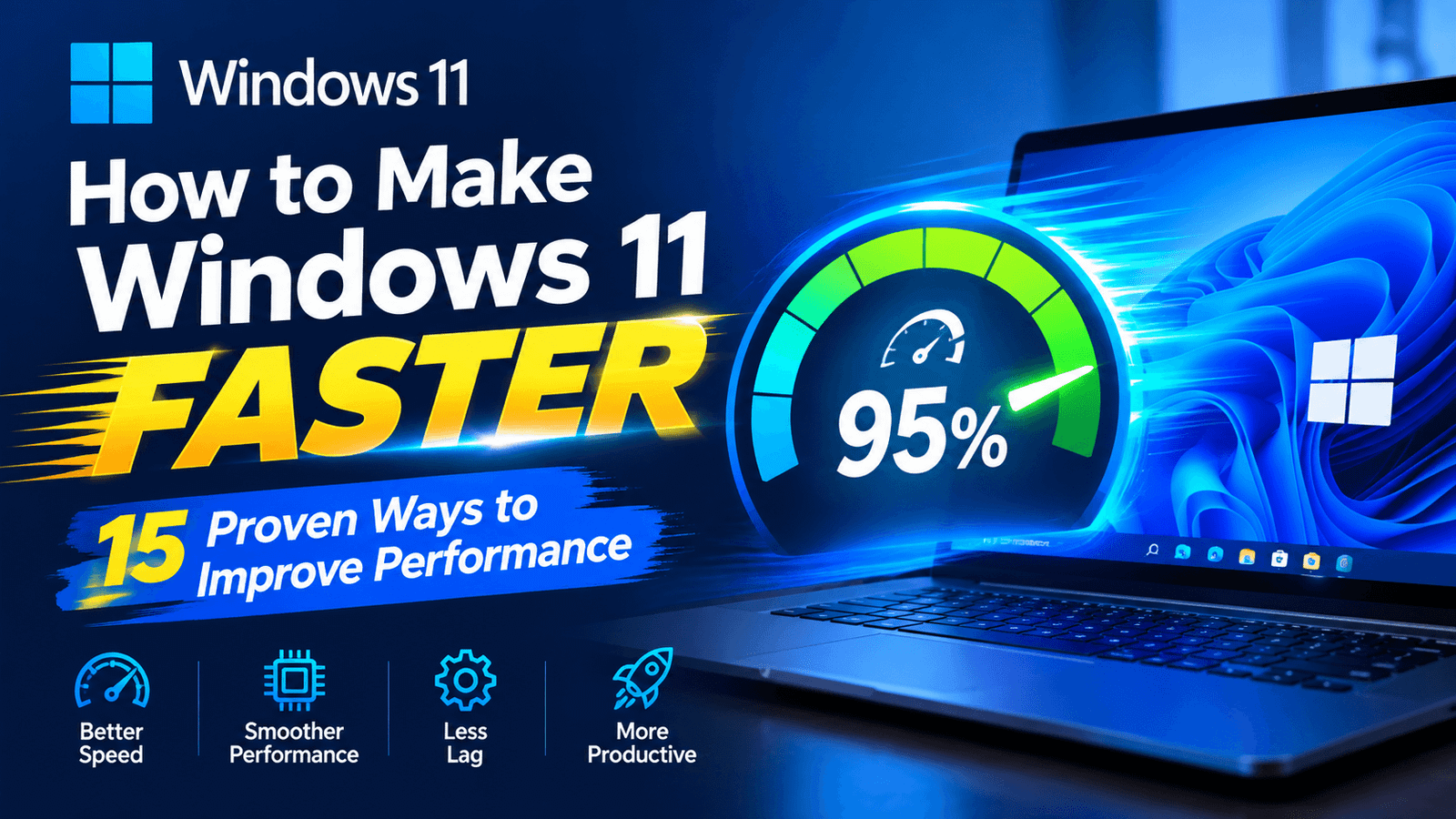
This lesson presents 15 methods to enhance your computer’s speed talk about how to make Windows 11 faster
1 Restart Your PC
Although restarting your computer might seem like a simple step, doing so can resolve many temporary performance-related issues. Leaving a computer on for days can lead to the accumulation of background processes, memory usage, and resource consumption by various software applications.
When a computer runs for extended periods, various applications and background processes can consume memory and other system resources. Restarting provides the Windows system with a fresh session, helping to resolve temporary software-related problems.
To easily restart your computer, follow these steps:
Go to Start > Power > Restart.
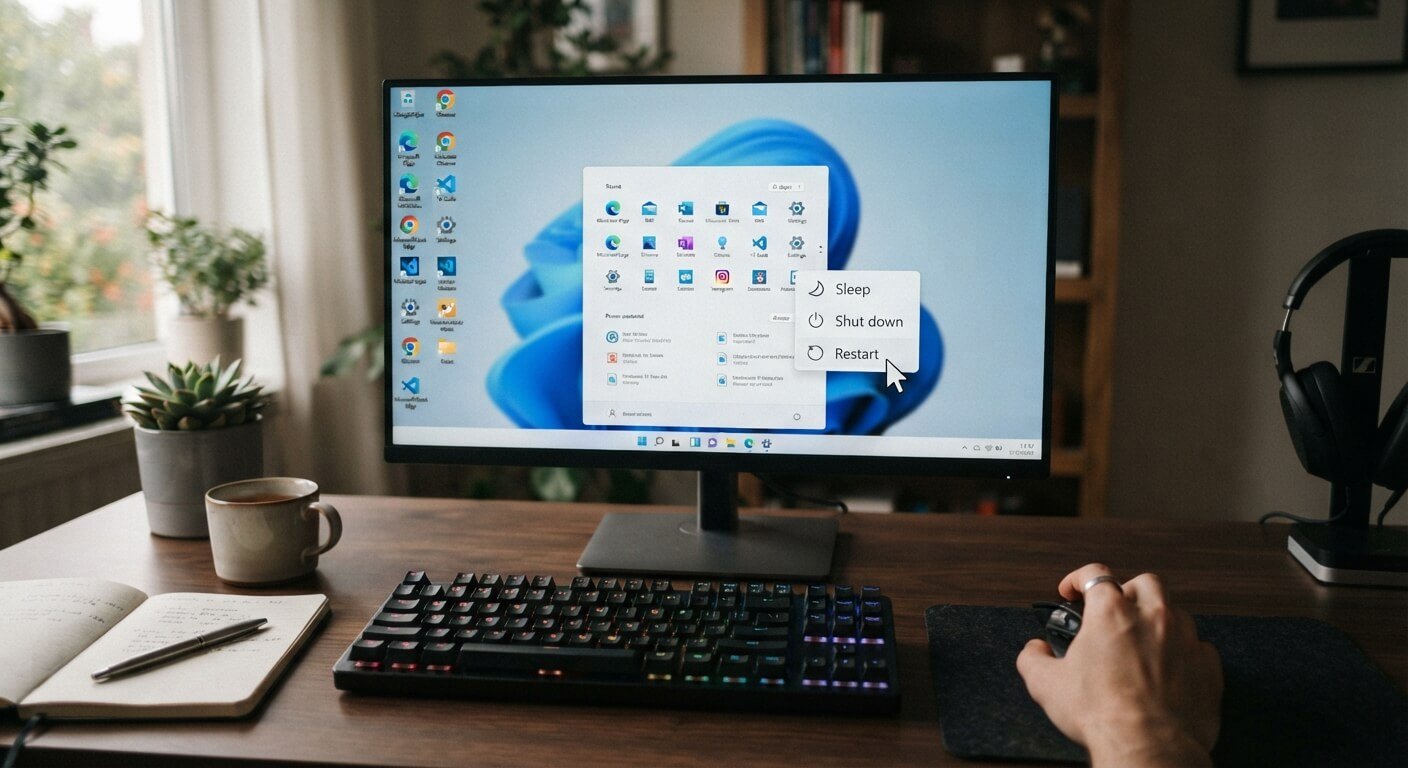
If your computer has become significantly slower than usual, restarting it should be one of the first things you try.
2 Disable Unnecessary Startup Apps
If your computer have a large number of application run at Windows startup it can be significantly increase the system boot-up time and also lead to the consumption of system resources in the background.
Open: Settings > Apps > Startup
Alternatively, press Ctrl + Shift + Esc to open Task Manager and select Startup apps.
Windows shows the startup impact of applications, helping you identify programs that may be unnecessarily slowing down startup.
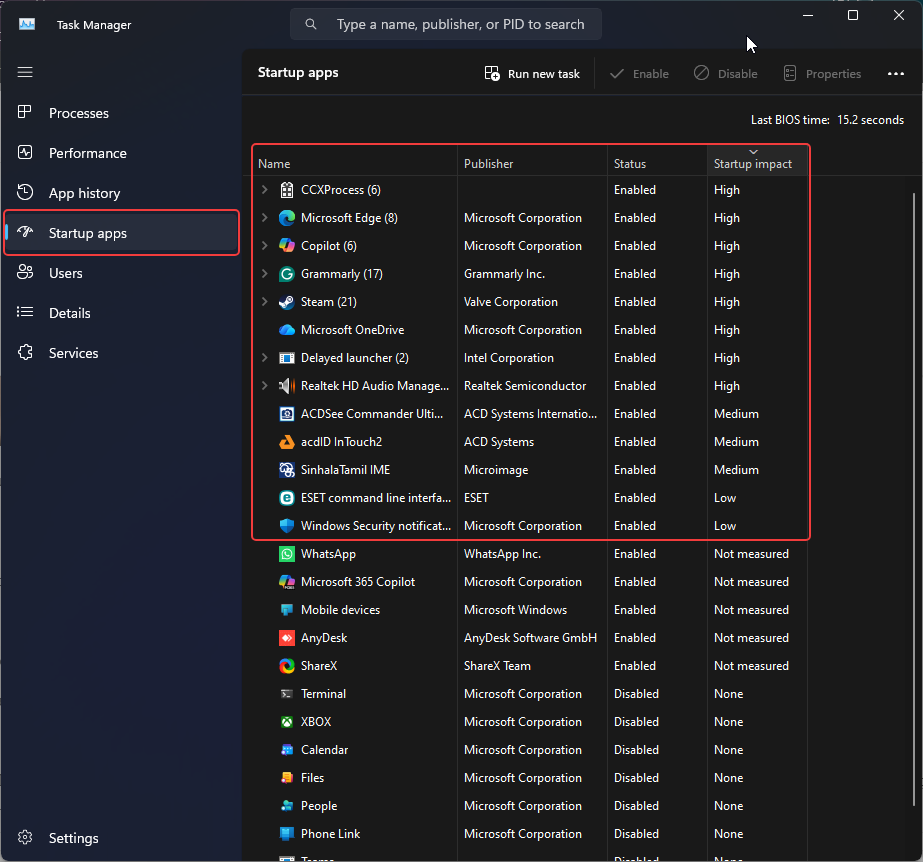
After opening Task Manager, navigate to the ‘Startup apps’ tab to view the applications that run when Windows starts; here, you can also see the ‘Startup impact’ these applications have on the system’s startup process. You can filter the list by ‘Enabled’ status and disable any unnecessary applications—such as game launchers, update utilities, or software not immediately required after logging in.
Don’t disable security software or system components unless you know exactly what they do.
3 Free Up Storage Space
A nearly full system drive can affect Windows performance. Insufficient space for computer applications can significantly slow down the computer’s operation. This can also make it more difficult to perform updates.
Open: Settings > System > Storage
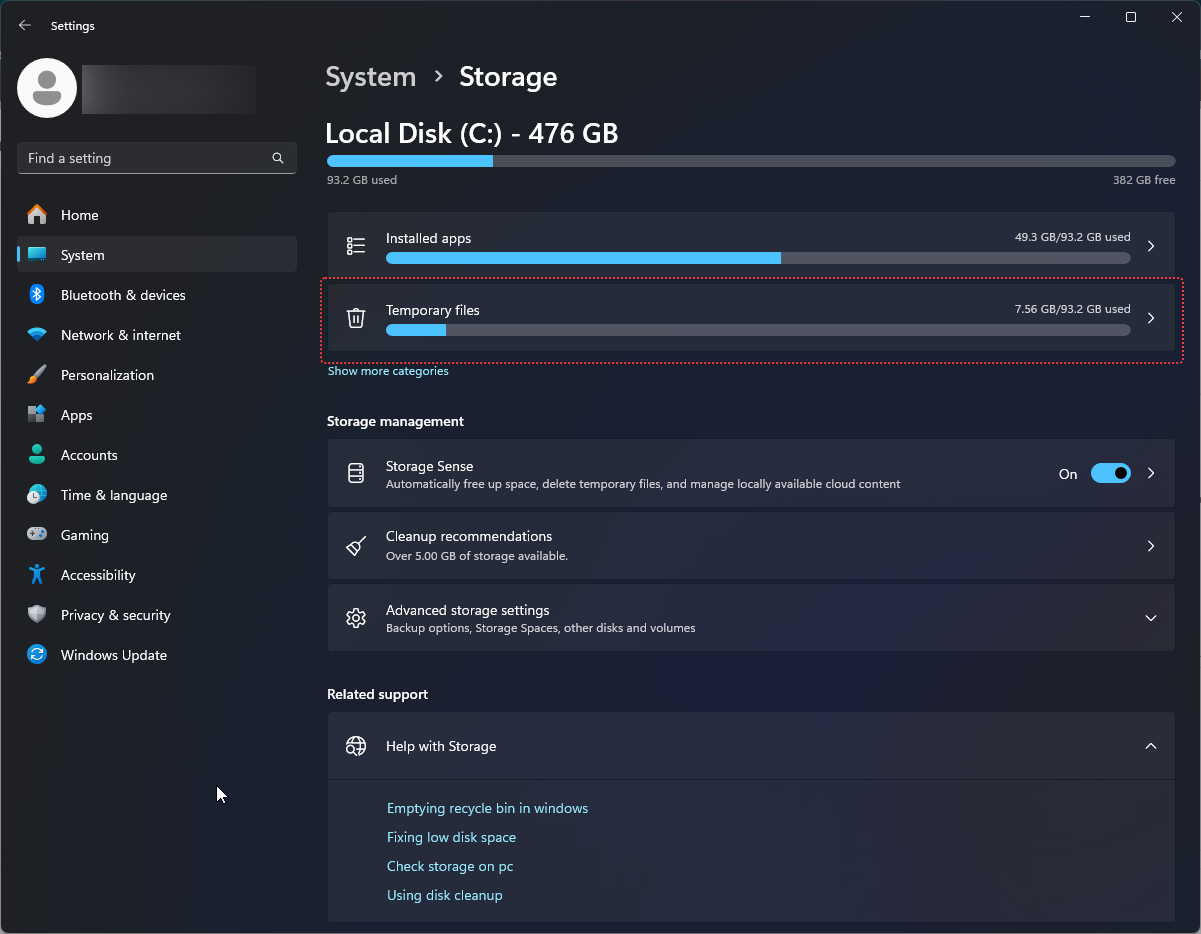
Windows provides a breakdown of how your storage is being used, including installed applications, temporary files, and system files.
Delete unnecessary temporary files, uninstall applications you no longer use, and move large personal files such as videos to another drive or cloud storage.
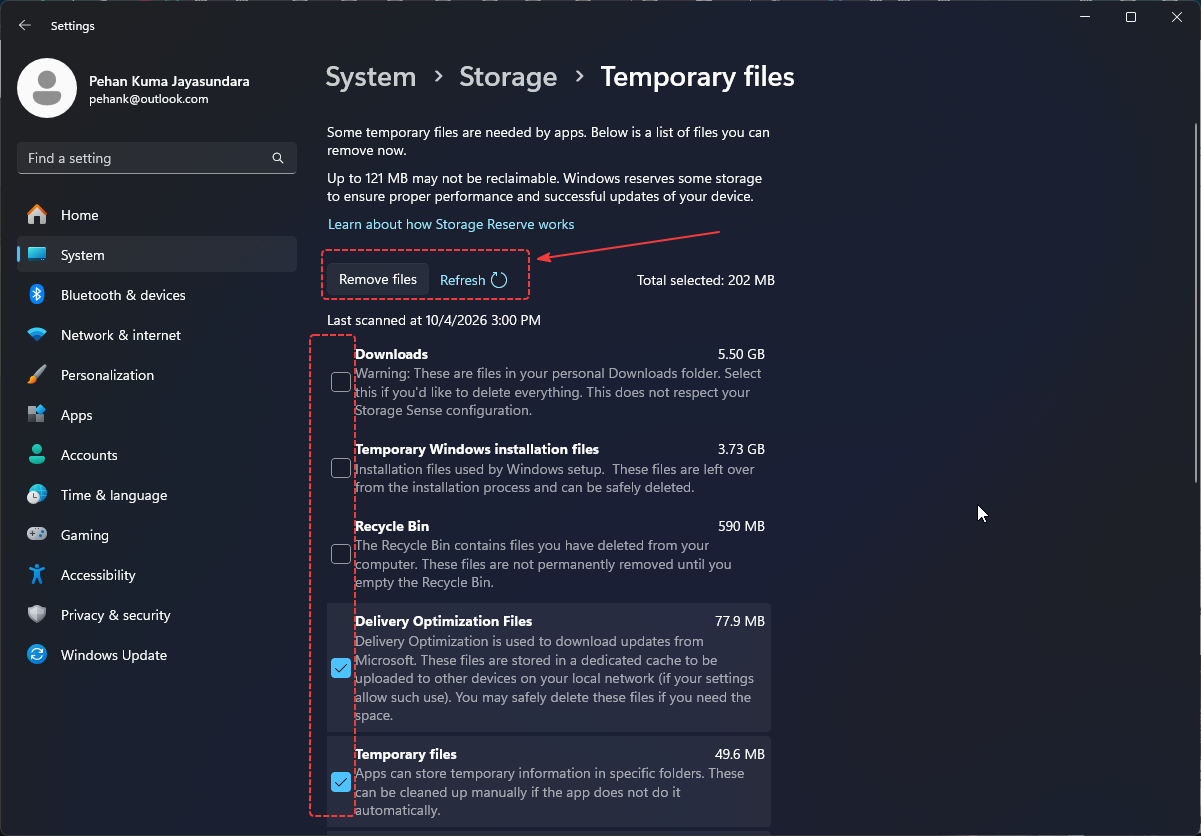
Microsoft specifically recommends freeing disk space when Windows is running low on storage.
4 Turn On Storage Sense
Windows 11 includes the ‘Storage Sense’ feature, which helps maintain disk space by automatically removing unnecessary temporary files.
Navigate to: Settings > System > Storage > Storage Sense.
Enable this feature and configure the cleanup options according to your preferences.
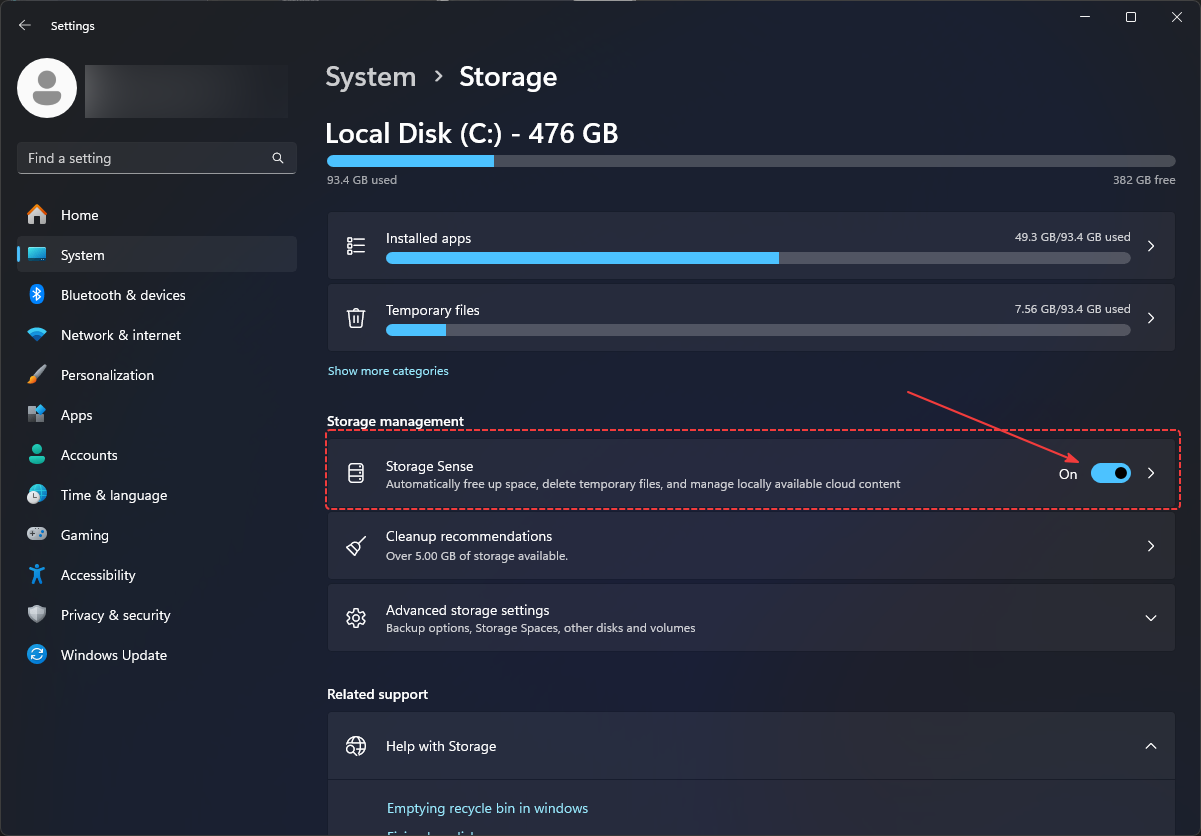
Storage Sense can automatically remove temporary files and items in the Recycle Bin. However, exercise caution when configuring cleanup options for the ‘Downloads’ folder or cloud storage, as you may not want Windows to automatically delete files that you still need.
5 Uninstall Programs You Don’t Use
Unused applications consume storage space, and some may run background services.
Go to: Settings > Apps > Installed apps
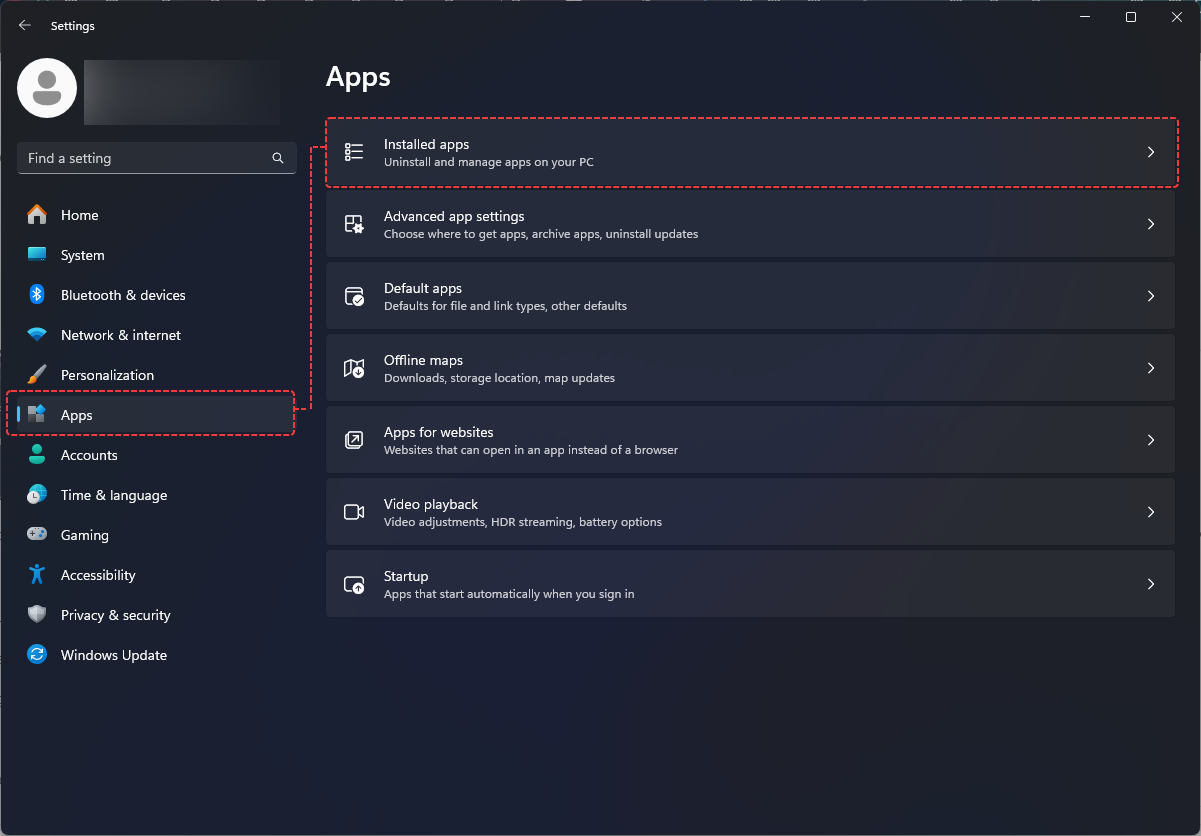
Review the list and uninstall programs you no longer need.
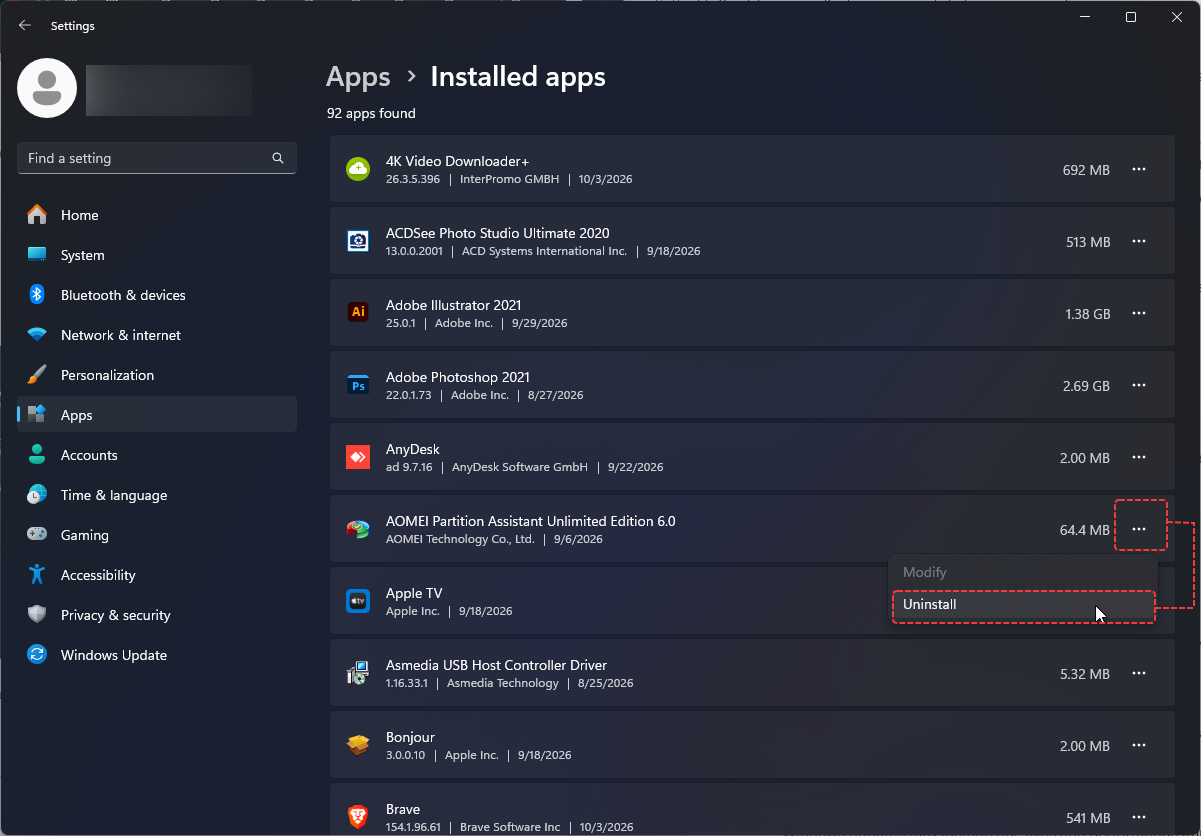
Be careful with manufacturer utilities, hardware drivers, and Microsoft components. If you’re unsure what a program does, research it before removing it.
6 Install Windows Updates
Keeping Windows 11 updated can improve stability, security, and performance.
Go to: Settings > Windows Update > Check for updates
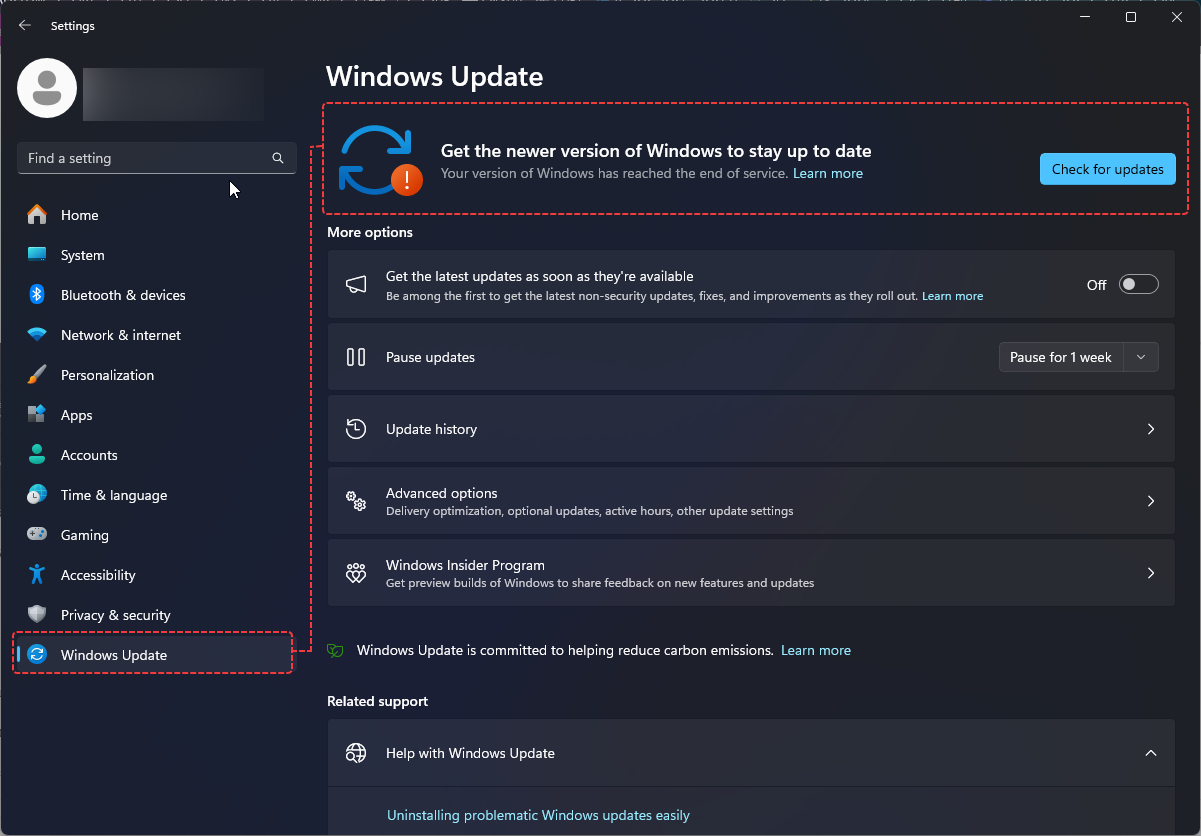
Windows updates may include bug fixes and performance improvements. Optional driver updates may also be available via Windows Update. Keeping the system regularly updated can also enhance the computer’s security.
After installing major updates, restart your computer when prompted.
7 Update Hardware Drivers
Outdated drivers can cause performance, compatibility, or stability problems.
Pay particular attention to:
- Graphics drivers
- Chipset drivers
- Network drivers
- Storage-controller drivers
- Audio drivers
For important hardware, download drivers from the manufacturer’s official website or use Windows Update rather than random third-party driver websites.
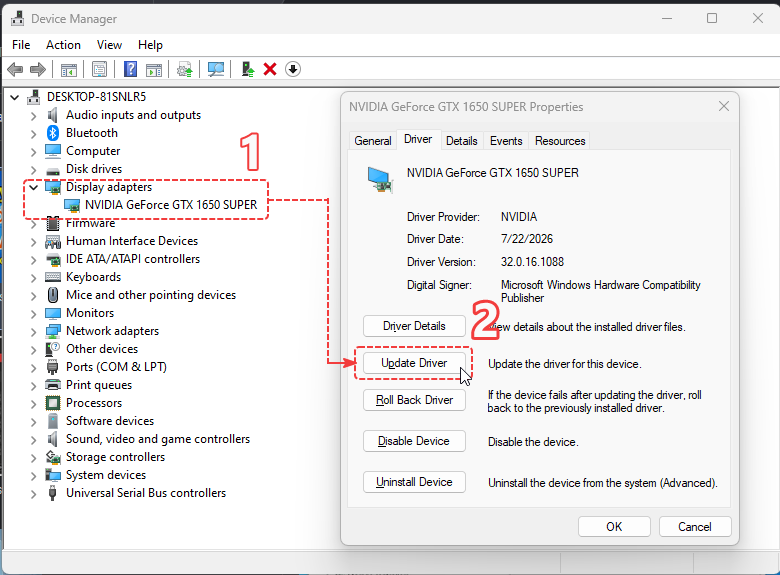
To open Device Manager go to search and type Device Manager. Select the drivers that you want to upgrade and right click on it and click update.
8 Check Task Manager for Resource-Hungry Apps
Task Manager is one of the most useful Windows troubleshooting tools.
Press: Ctrl + Shift + Esc
Focus on the ‘Processes’ and ‘Performance’ tabs.
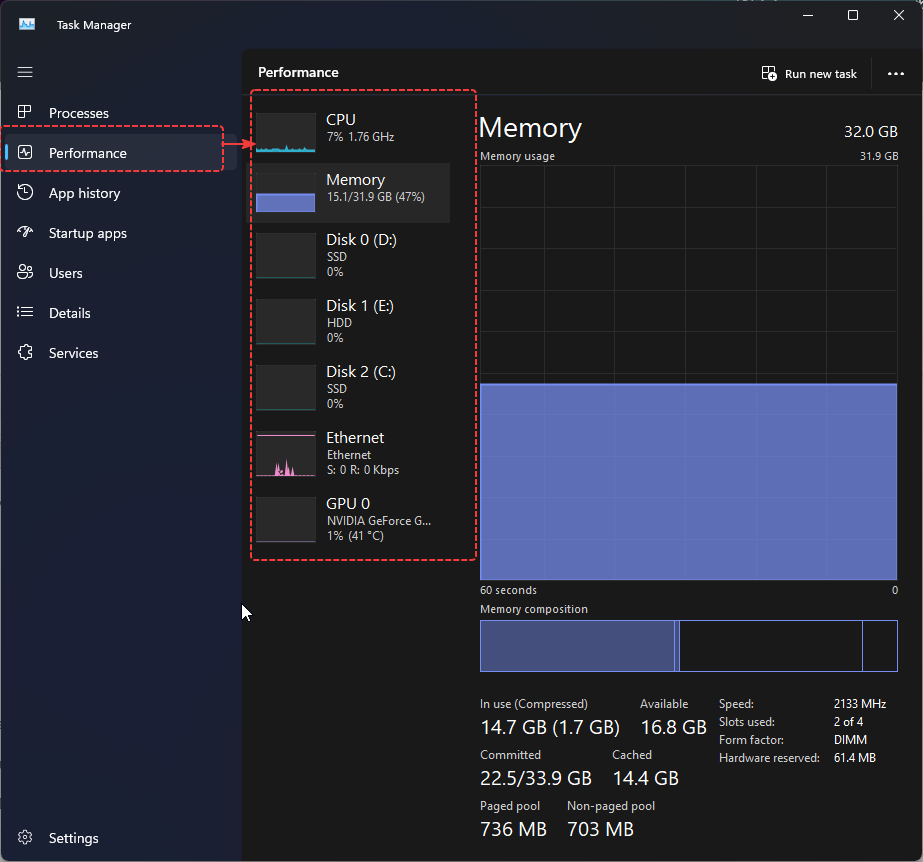
Check if CPU, Memory, Disk, or GPU usage is abnormally high. I recommend using ‘Task Manager’ to identify processes that are consuming significant system resources.
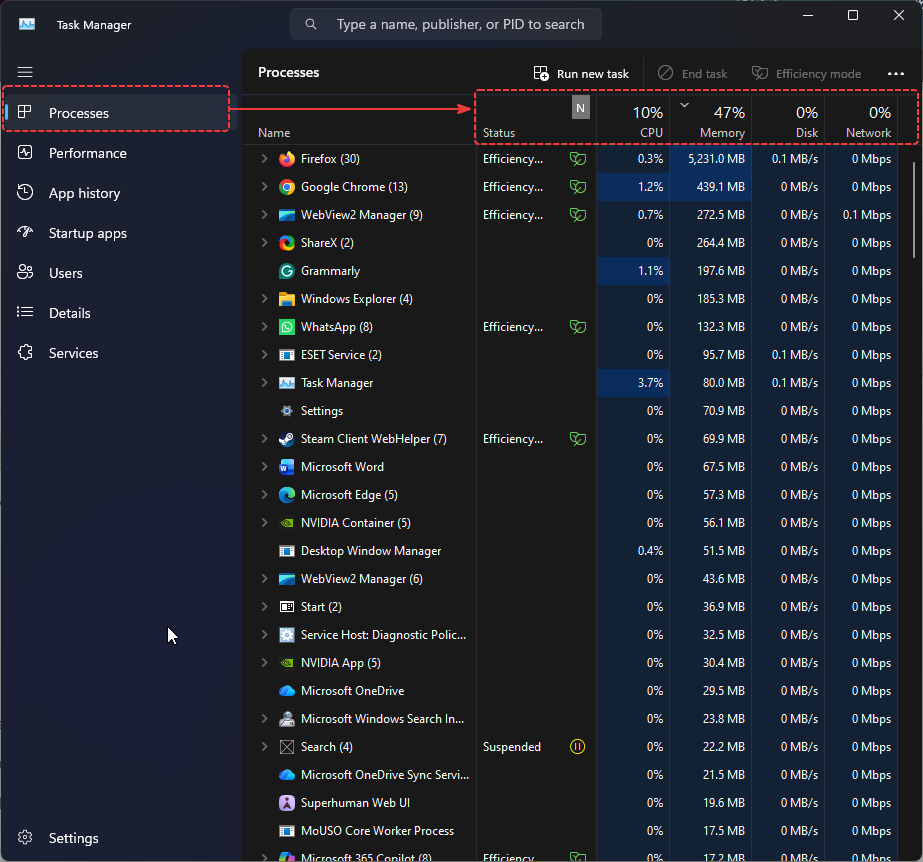
For example, if memory usage is between 90% and 100%, it could be due to having a large number of applications open or having insufficient RAM for your workload.
In some instances, CPU and disk usage may be abnormally high; in such cases, click on the ‘Processes’ tab to determine exactly which application is consuming excessive CPU, RAM, or storage.
9 Reduce Unnecessary Background Activity
Some applications continue running processes even when you’re not actively using them.
For supported applications, open:
Settings > Apps > Installed apps > [App] > Advanced options
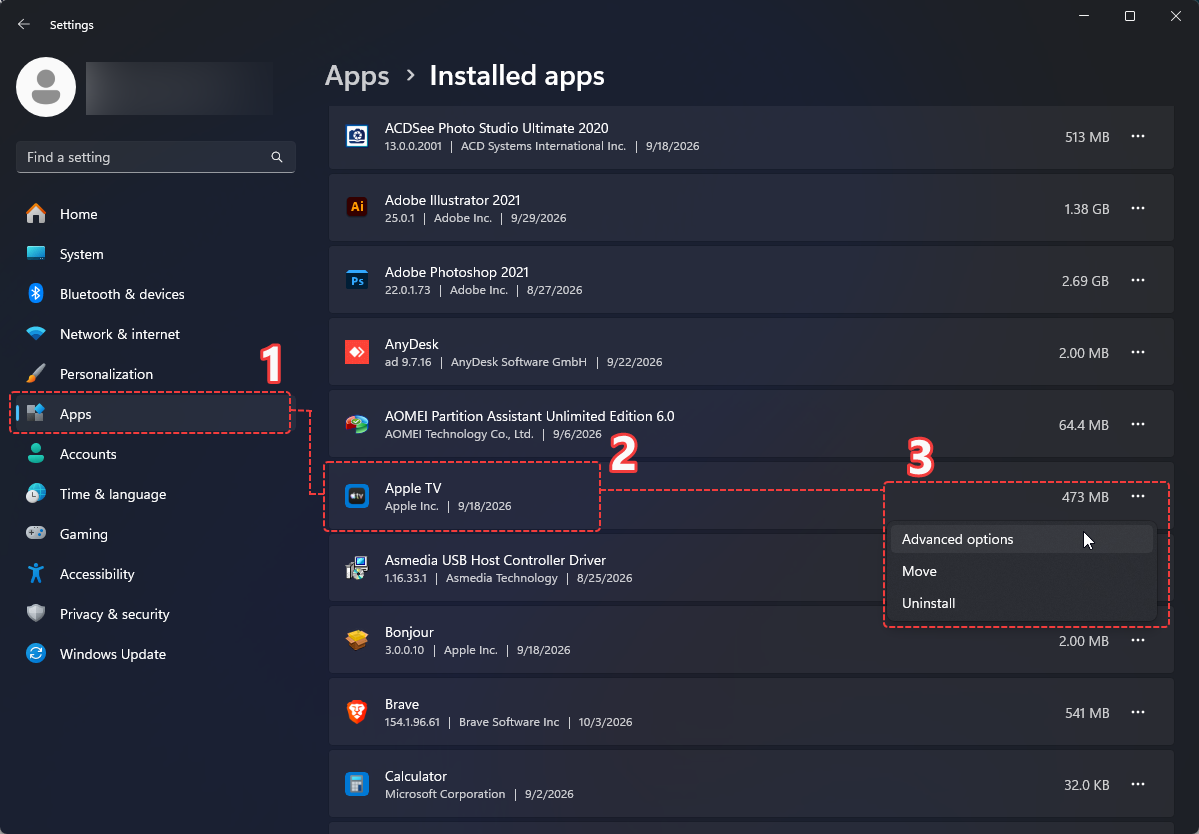
Where available, review the background-app permissions and restrict unnecessary background activity.
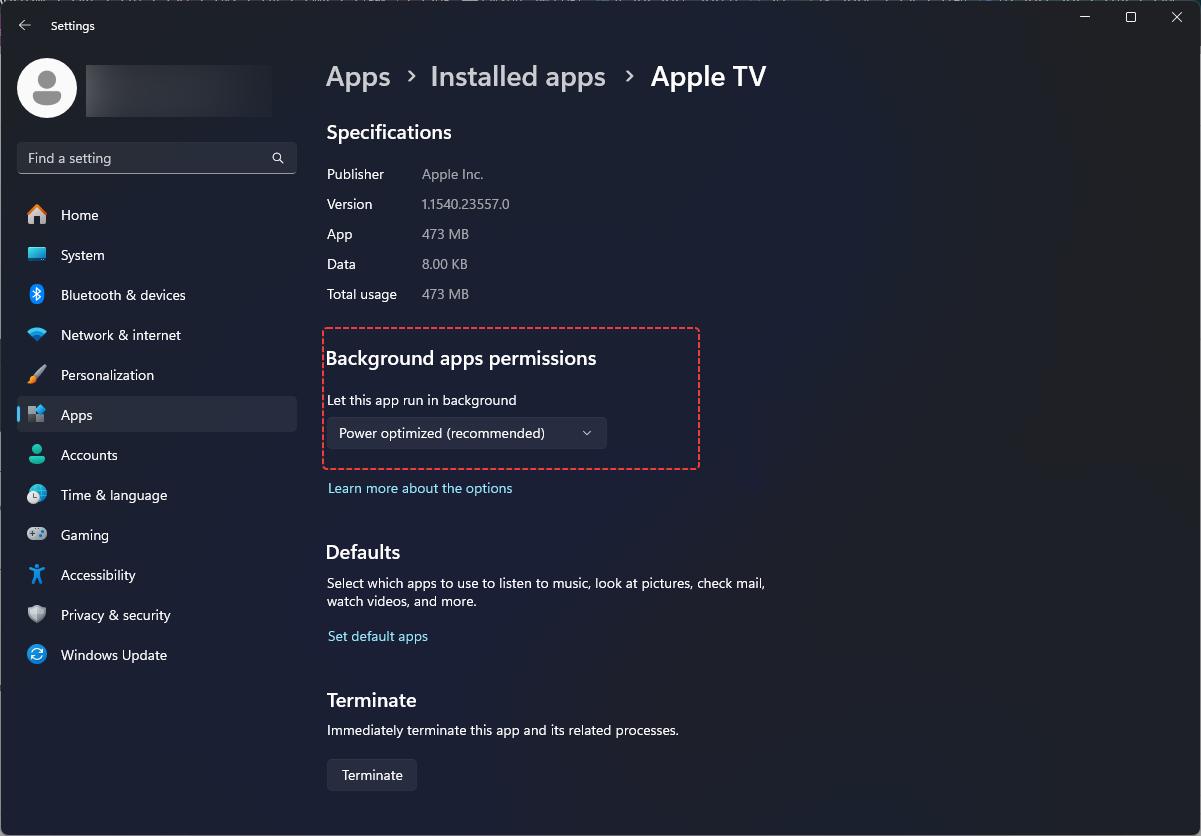
This can reduce resource usage and improve battery life on laptops.
10 Adjust Windows Visual Effects
Windows 11 includes animations, transparency, and other visual effects that make the interface attractive but can consume additional system resources.
Click Start and Search for: Adjust the appearance and performance of Windows
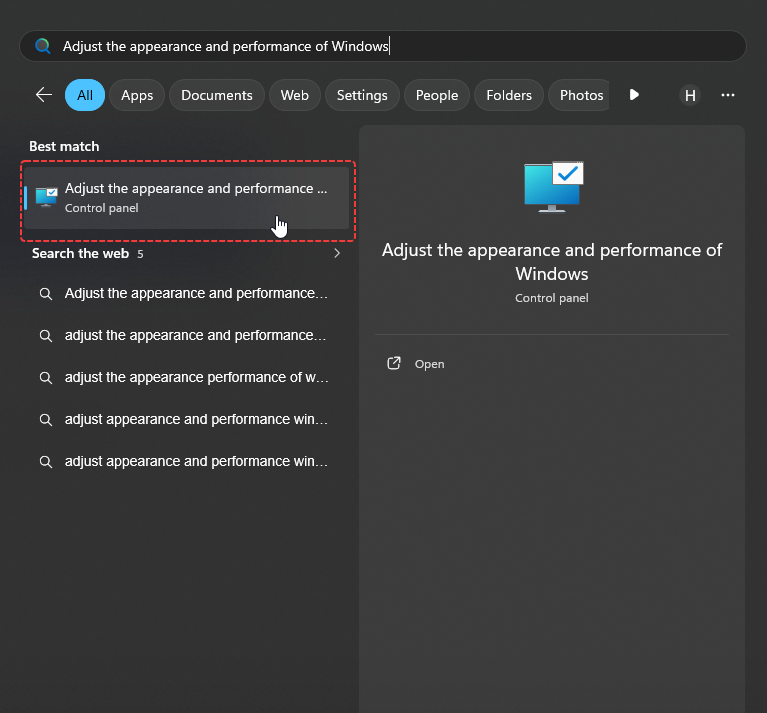
Open the result and select Adjust for best performance.
You can also choose Custom and disable only the effects you don’t need.
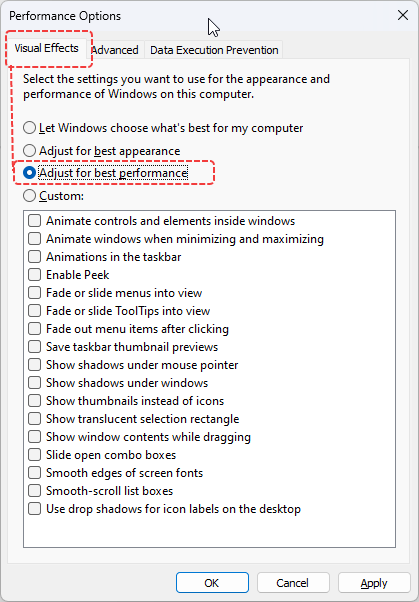
This adjustment can be particularly useful on older PCs with limited hardware. Microsoft lists reducing visual effects as one of its recommended performance improvements.
11 Change Power Mode to Best Performance
If you’re using a desktop PC or your laptop is plugged into power, Windows 11 allows you to prioritize performance.
Go to: Settings > System > Power & battery > Power mode
Select Best performance when maximum performance is more important than energy savings.
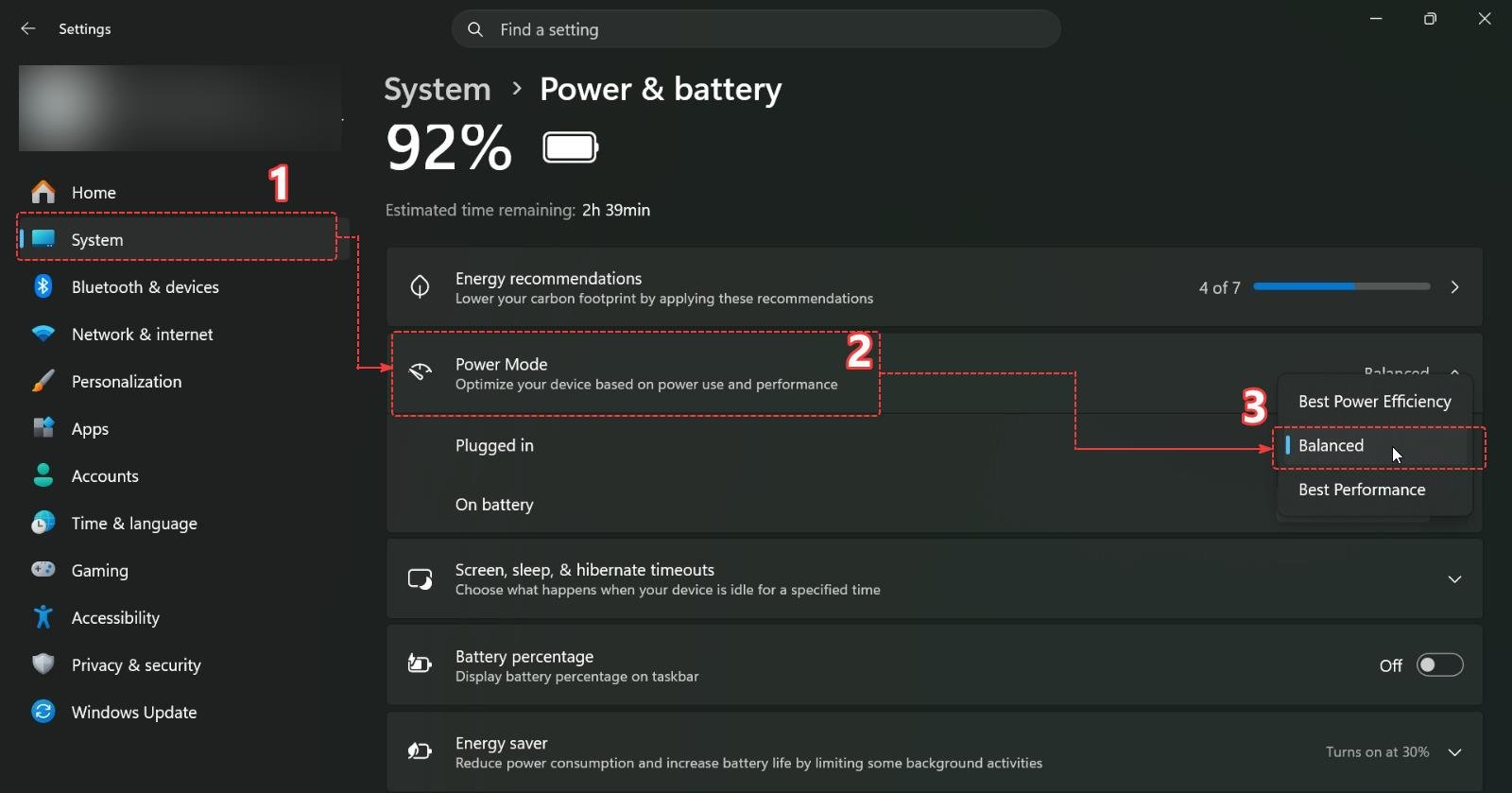
However, Microsoft warns that this setting can increase power consumption and battery drain on laptops.
12 Scan for Malware
Malware can consume CPU, memory and disk resources while operating in the background.
Open: Settings > Privacy & security > Windows Security > Virus & threat protection
Run a Quick scan.
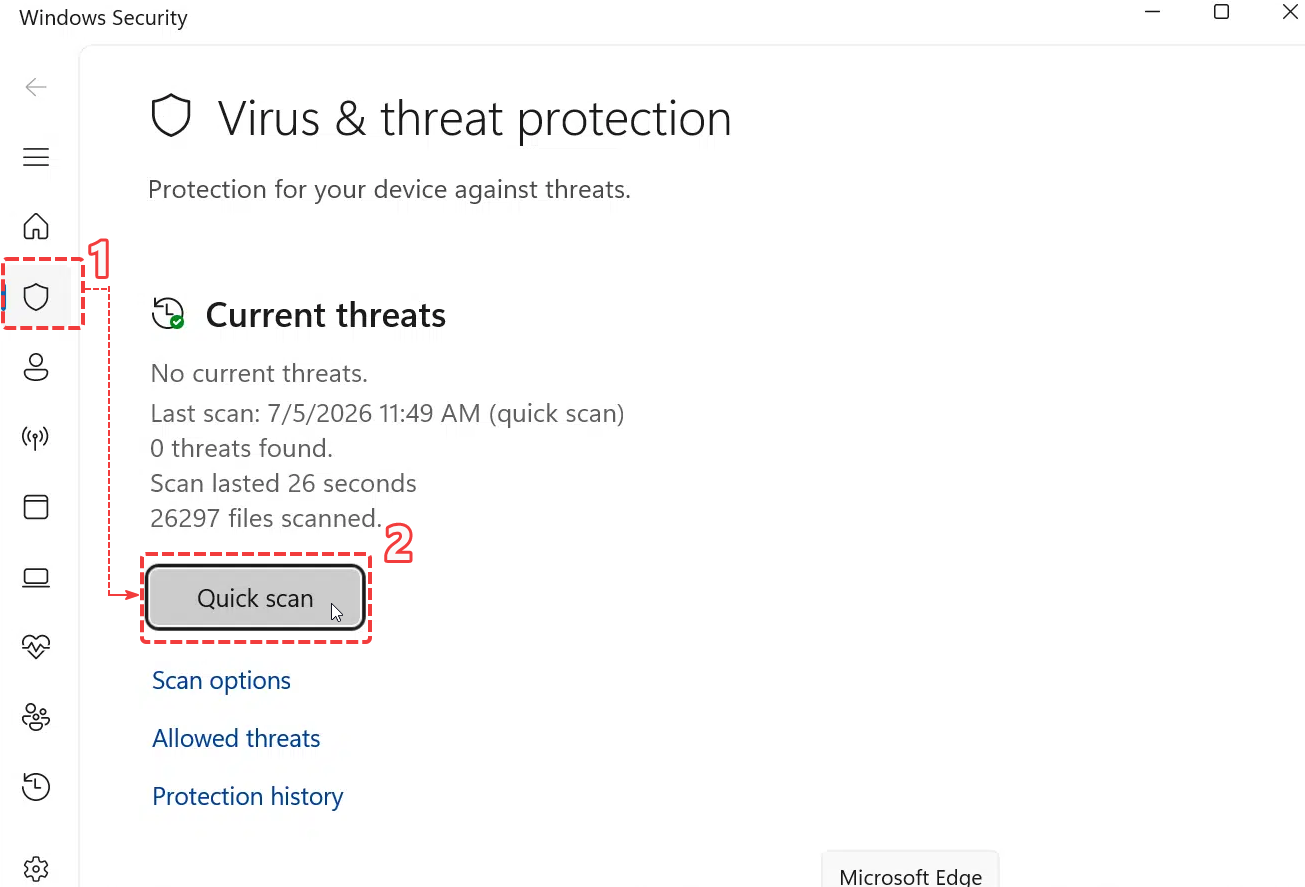
If you notice unusual CPU or disk usage, unexpected advertisements, browser changes or unknown applications, consider performing a more thorough security investigation.
Microsoft specifically recommends malware scanning as part of troubleshooting slow Windows PCs.
13 Optimize Your Drives
Windows includes a built-in drive optimization tool.
Search for: Defragment and Optimize your Drives
Select your drive and choose Optimize.
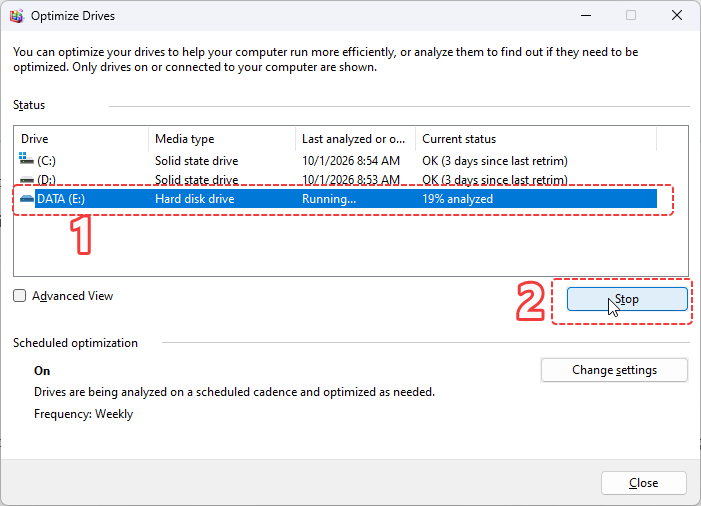
Windows handles modern storage devices differently; therefore, do not treat SSDs like traditional mechanical hard drives by manually running conventional defragmentation tools or using aggressive third-party “optimizer” software. Using Windows’ built-in optimization mechanism is the safer approach.
14 Upgrade Your Hardware
Sometimes, there is a limit to what software optimization can achieve.
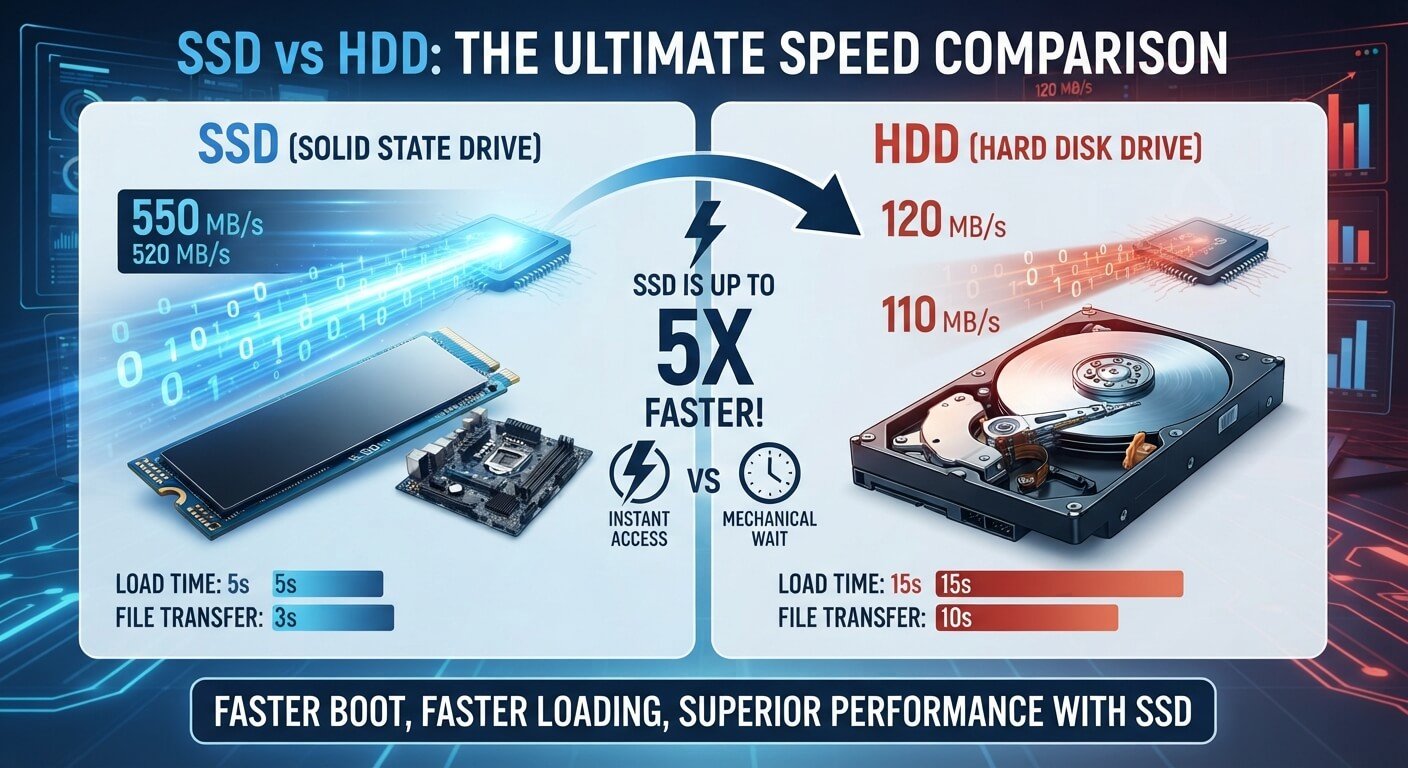
If your computer has limited RAM, an older processor, or a mechanical hard drive, a hardware upgrade can yield far greater improvements than simply tweaking Windows settings.
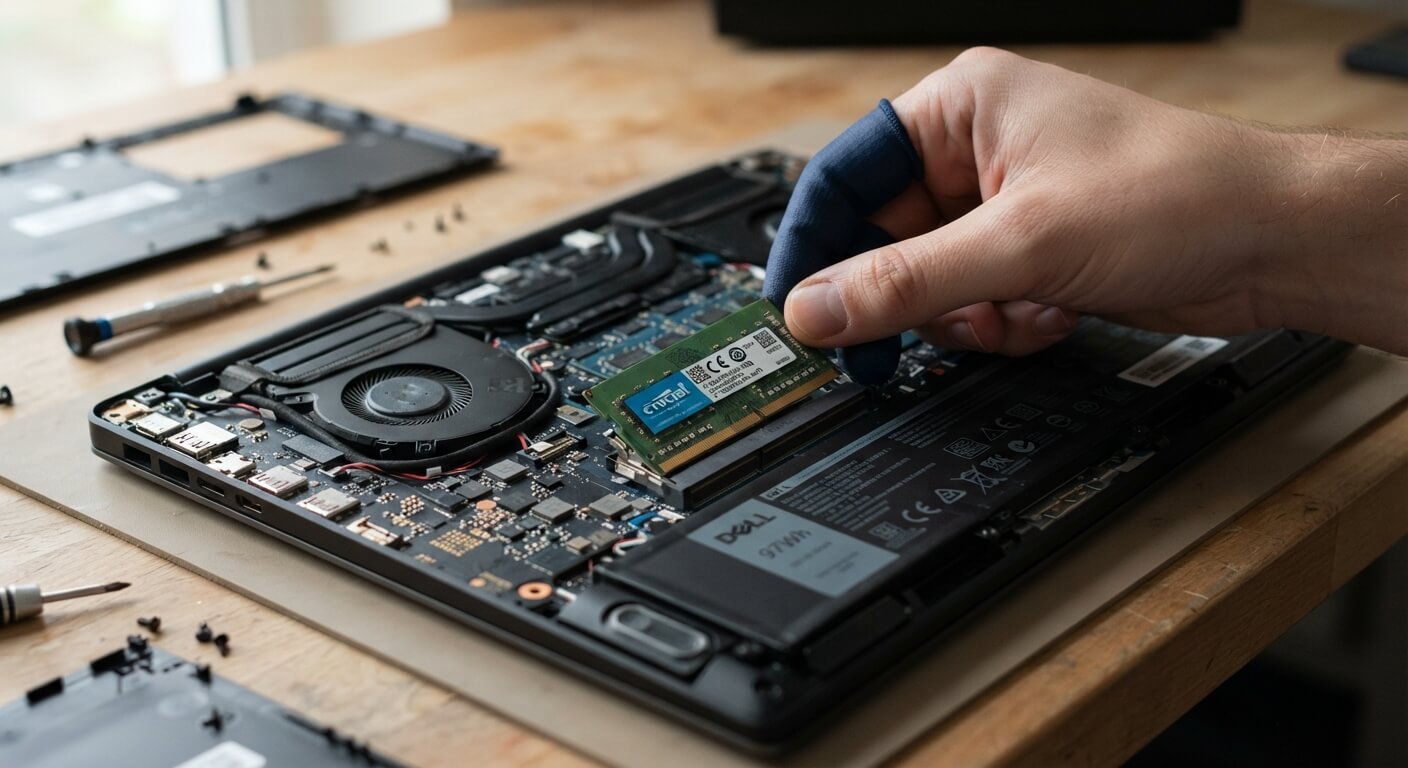
For instance, replacing an old HDD with an SSD can dramatically improve boot and application loading times. Increasing RAM also helps if you frequently use multiple applications, browser tabs, or professional software simultaneously.
While Windows 11’s official minimum requirements include 4 GB of RAM and 64 GB of storage, merely meeting these minimums does not guarantee a fast experience for demanding workloads.
15 Find Out What’s Actually Causing the Slowdown
Identify the bottleneck before making numerous changes.
If CPU usage is consistently high, look for applications or processes consuming processor resources.
If memory usage is consistently near capacity, consider closing applications or upgrading your RAM.
If disk usage is consistently high, investigate Windows processes, applications, storage health, and whether you are using an older HDD.
If the computer is slow despite normal resource usage, check for driver issues, hardware limitations, overheating, or aging storage.
I recommend checking PC health and startup information using the built-in PC health check tools.
16 Final Thoughts – How to Make Windows 11 Faster
You do not need complex registry tweaks or questionable third-party “PC booster” apps to speed up Windows 11. Start with Microsoft’s built-in tools: disable unnecessary startup apps, free up storage space, install updates, scan for malware, and monitor the Task Manager.
If your computer remains slow after optimization, the bottleneck might be the hardware rather than Windows. In that case, upgrading the SSD or RAM—or ultimately getting a new computer—could yield more significant improvements. Microsoft also notes that older hardware does not see substantial gains from software optimization alone.
Quick Windows 11 Speed-Up Checklist
✅ Restart your PC regularly
✅ Disable unnecessary startup applications
✅ Free up C: drive space
✅ Enable Storage Sense
✅ Uninstall unused software
✅ Install Windows and driver updates
✅ Check Task Manager
✅ Reduce unnecessary background activity
✅ Reduce visual effects if necessary
✅ Use Best Performance power mode when appropriate
✅ Scan for malware
✅ Optimize drives
✅ Consider an SSD or RAM upgrade
External sources: Microsoft: Tips to improve PC performance in Windows · Microsoft: Free up drive space in Windows · Microsoft: Configure startup applications