

When work deadlines, personal tasks, appointments and reminders are battling for your attention, it can be hard to get organized. The right smartphone app can help you manage those responsibilities without the need to rely on scattered notes or trying to remember everything.
The best productivity apps for Android depend on what you want to accomplish. Some are good for running your day-to-day tasks, while others are better for jotting down notes, planning projects or keeping your work and personal life in order.
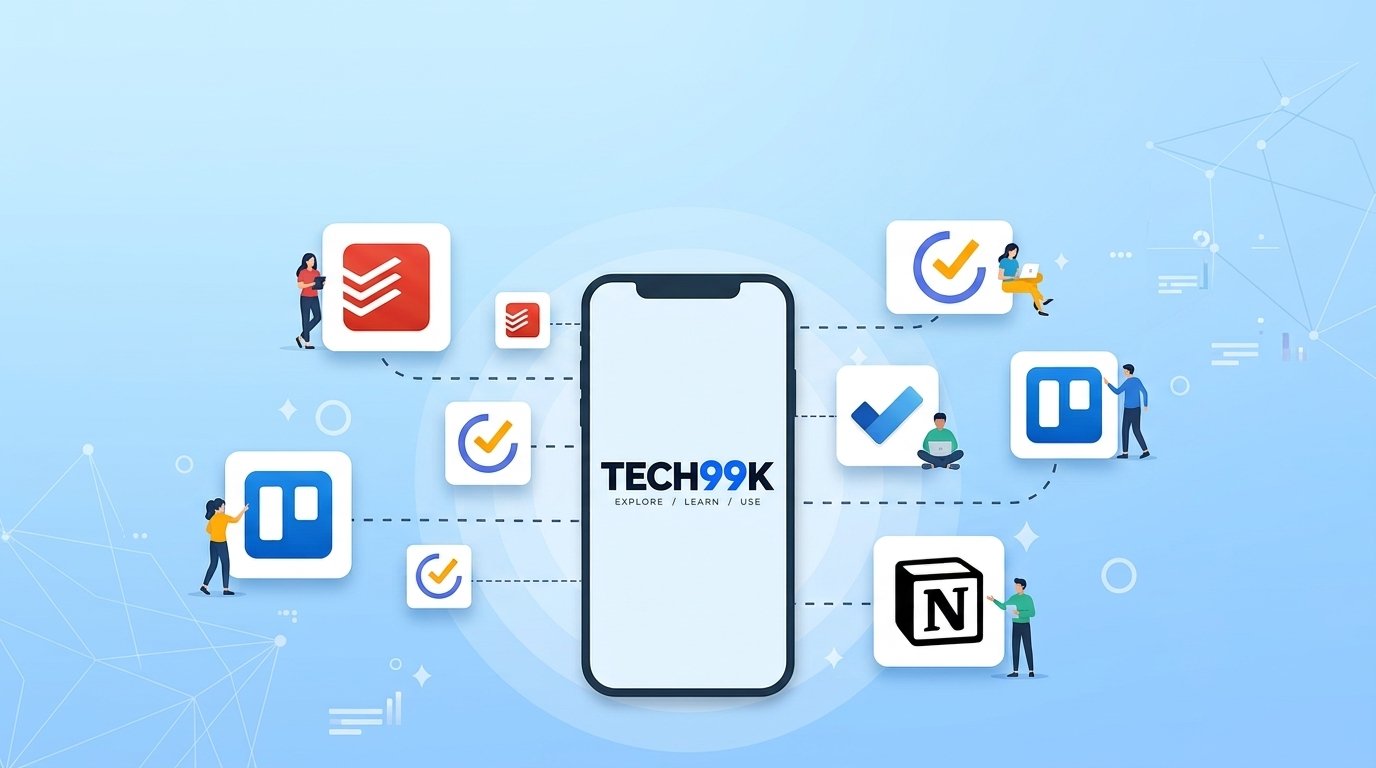
In this guide we’ll be looking at five useful options: Todoist, TickTick, Trello, Microsoft To Do and Notion. We’ll go through what each app does best, what you can do for free, and how to choose the right one for your routine.
Quick Comparison: Best Productivity Apps for Android
| App | Best for | Free option |
| Todoist | Organizing tasks and projects | Yes |
| TickTick | Tasks, reminders, and planning | Yes |
| Trello | Visually organize your tasks and projects | Yes |
| Microsoft To Do | Daily planning and Microsoft users | Yes |
| Notion | Notes, documents, and project organization | Yes |
The recommendations are based on documented features and practical use cases and do not claim that one app is the best for all users.
1. Todoist: Best for Managing Tasks and Projects
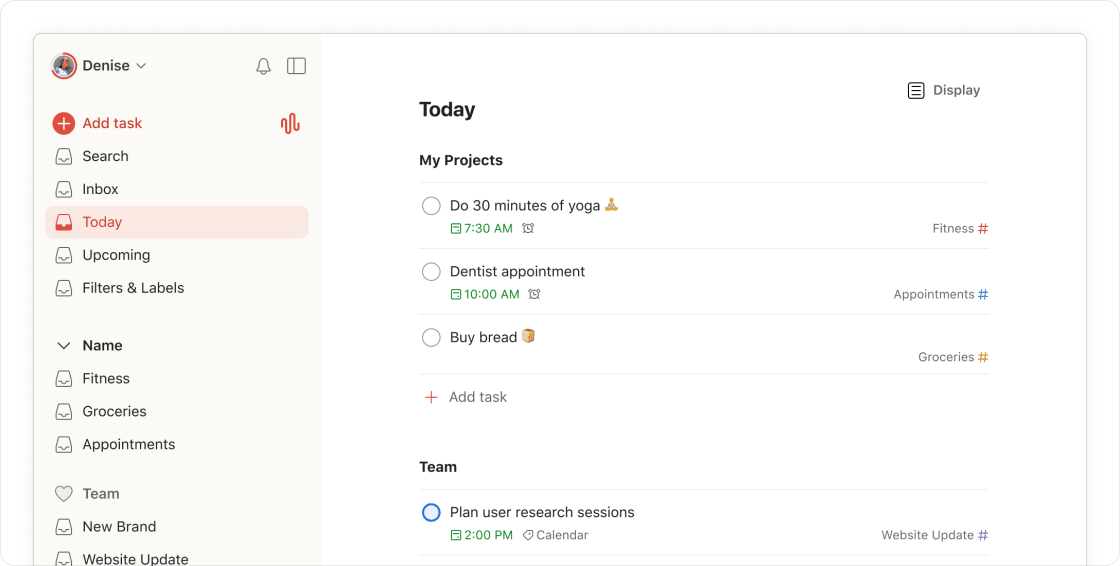
Todoist is a good option if you want to keep work tasks, personal errands, and projects that go further into the future all in one place.
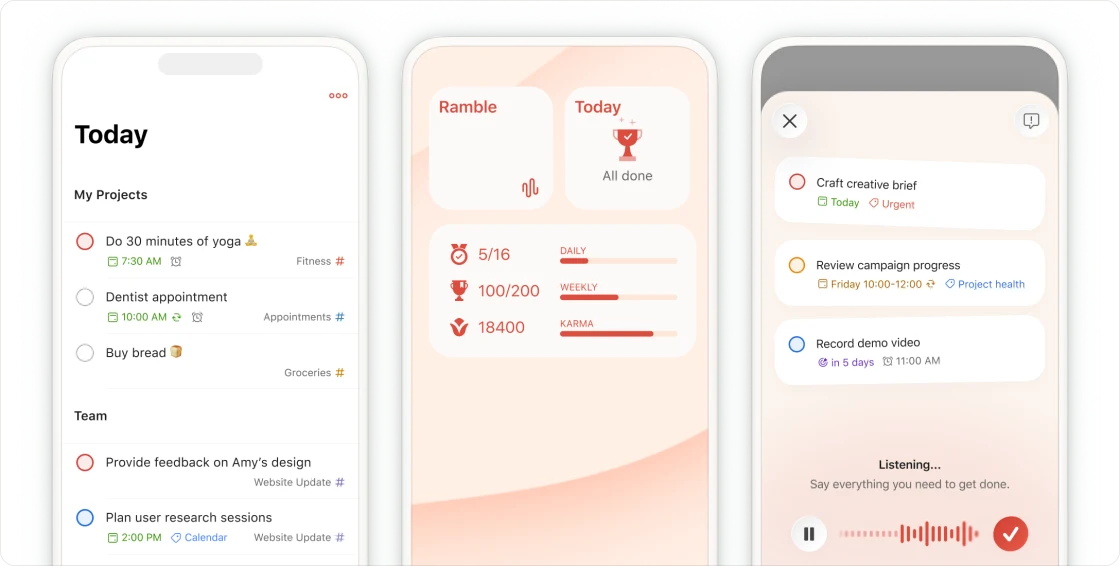
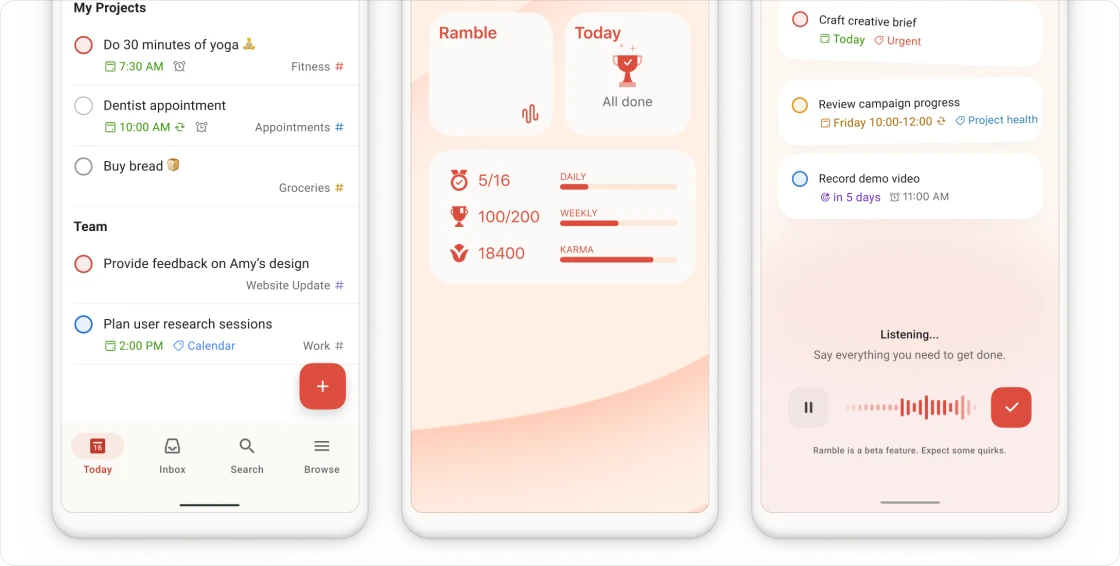
Create projects, add tasks and reminders and organize your work in different views. Free plan available for personal projects, reminders and list and board layouts, and paid plans for more organization and reporting features.
Key features
- Create task lists for work, home, study, and personal projects.
- Add due dates and reminders.
- Organize tasks using list and board layouts.
- Use integrations to connect with other productivity services.
- Upgrade for additional project capacity, calendar layouts, and advanced features.
Who should use Todoist?
You have a presentation to give, some bills to pay, a family appointment to schedule and a work assignment to complete. Instead of separate notes, you can create projects for these responsibilities and track deadlines.
Todoist is especially useful for those who like a structured task-management system.
One potential downside is the number of personal projects and some advanced features are limited on the free plan. It may require a paid subscription for complex workflows for users.
IOS
Android
Pricing: Free plan available. Pro is USD 5 per user per month, billed annually, on Todoist’s official pricing page. Check the current pricing page before subscribing.
Visit official website: https://todoist.com/
2. TickTick: Best for Tasks, Reminders, and Daily Planning
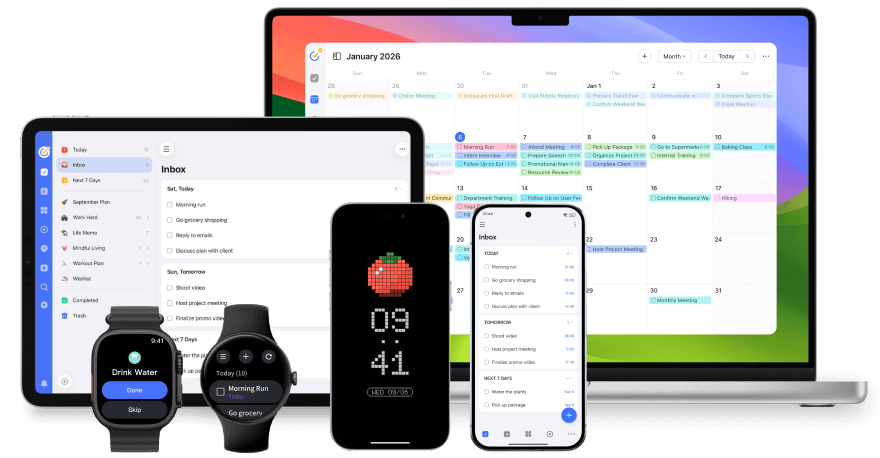
TickTick is a to-do list app with planning and productivity tools. If you want to organize your responsibilities and see more of your schedule in one app, consider it.
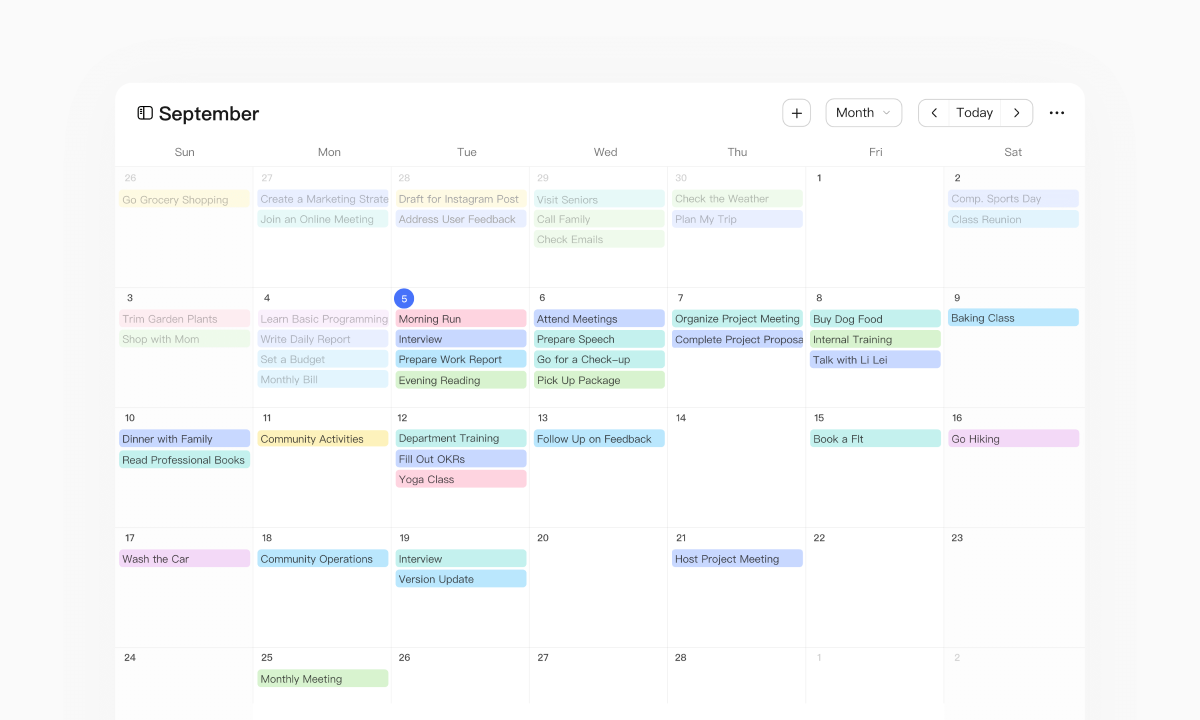
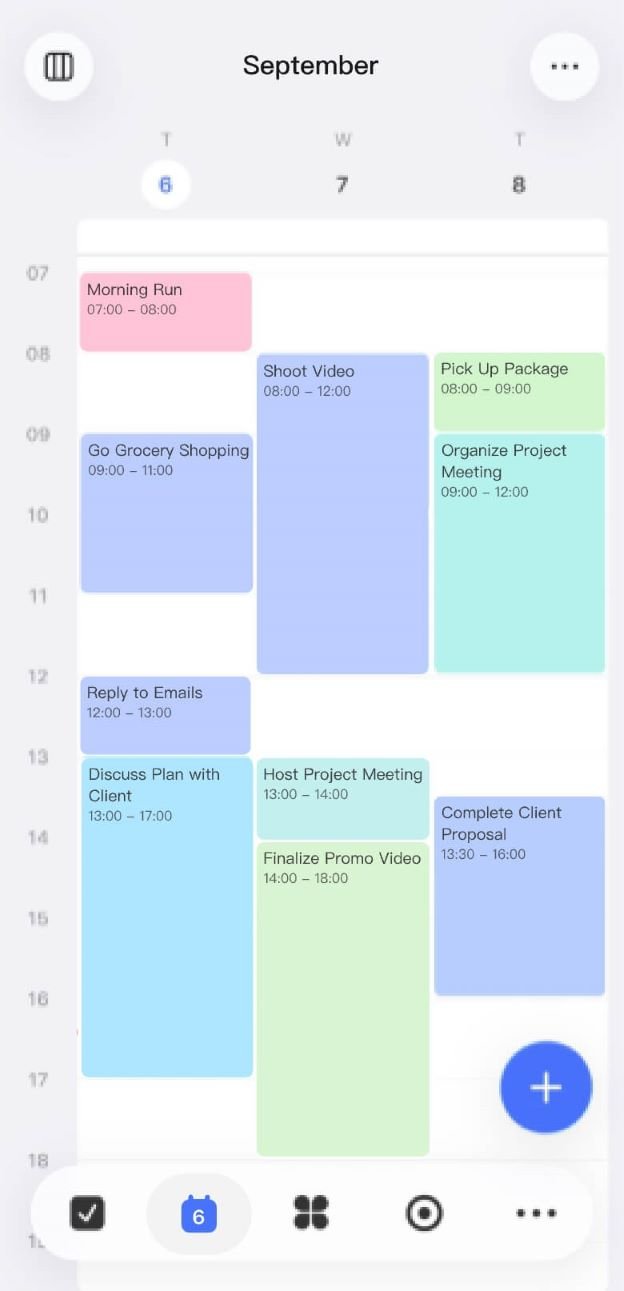
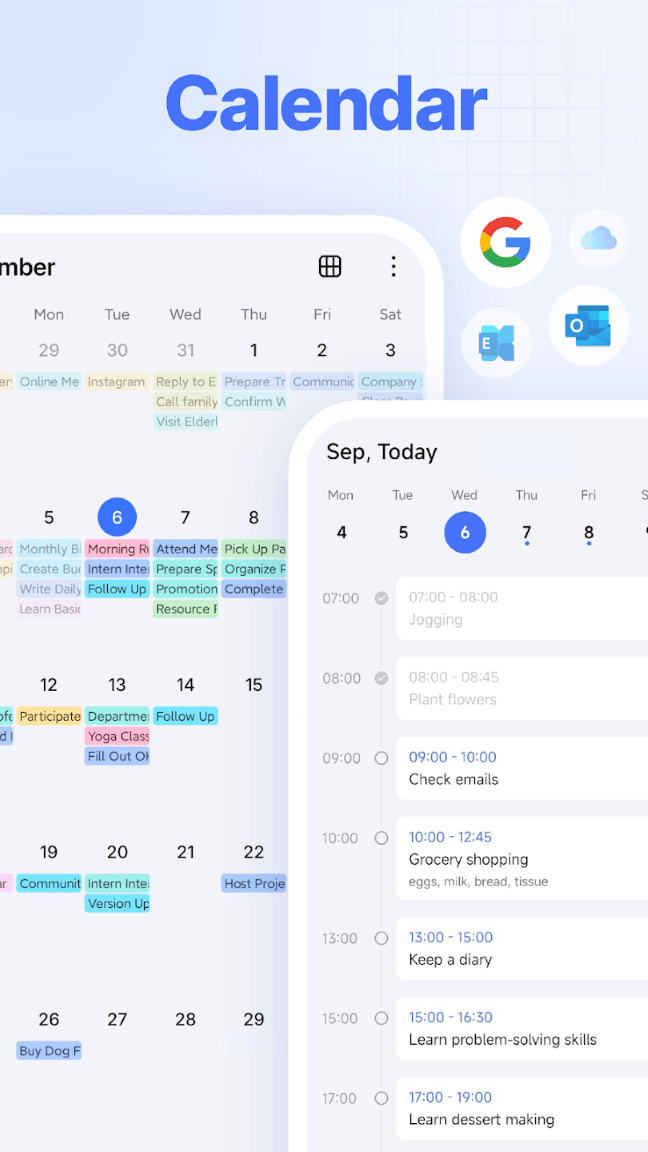
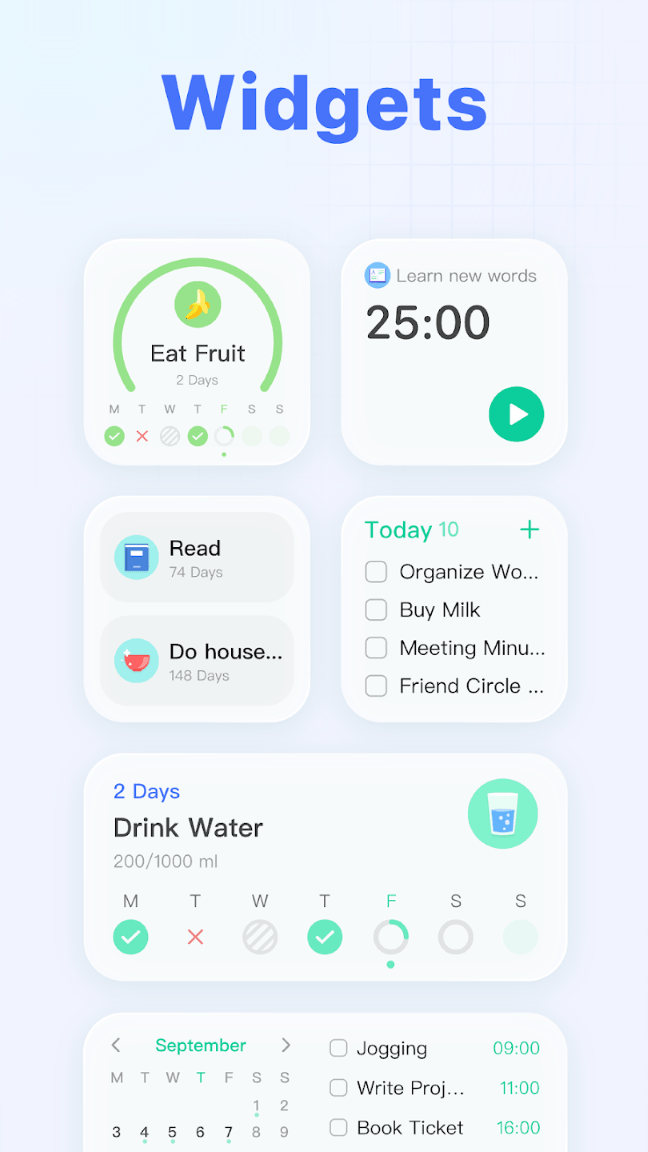
It offers features such as task lists, reminders, cross-platform syncing, and calendar views. Premium subscription unlocks additional features like a more powerful calendar and higher usage limits.
Key features
- Create and organize tasks into lists.
- Set reminders for important responsibilities.
- Synchronize tasks across supported devices.
- Use calendar views to plan your schedule.
- Explore additional planning and productivity features through Premium.
Who should use TickTick?
Students managing their own assignments, professionals planning their weekly deadlines, and anyone who wants to plan tasks with a calendar can find TickTick to be a good tool.
For example, you can write down your assignments, plan revision sessions and set reminders for upcoming deadlines. That way you can see what needs to be done rather than everything being equally urgent.
Possible limitation: Some advanced calendar, filtering and organization features require Premium. If all you want is a simple checklist, its other features may seem like overkill too.
Desktop
IOS & Android
Pricing: There is a free plan. TickTick Premium’s pricing has been updated on the official pricing pages. The price we are showing is USD 40.00/Year as we are writing this article, so before you pay check what price is showing for your account.
Visit website: https://ticktick.com/
3. Trello: Best for Visual Project Management
Trello is a productivity app that allows you to visually organize your tasks and projects using boards, lists, and cards. Instead of managing everything in a traditional to-do list you can see and track the progress of your work and push tasks through different stages.
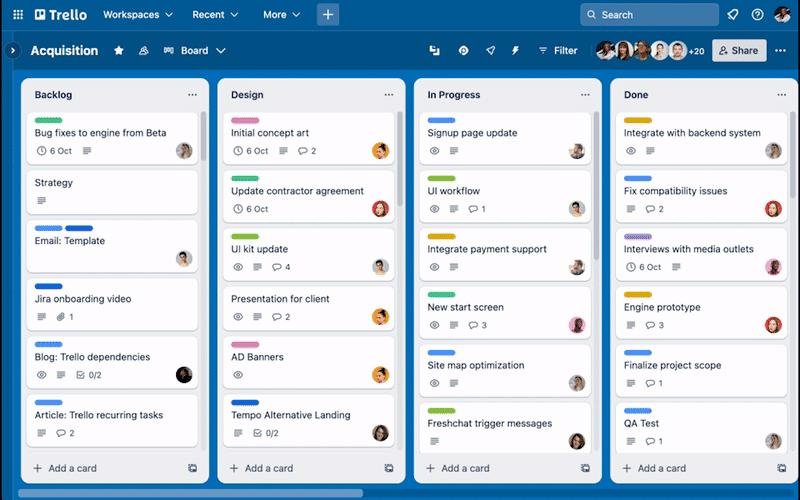
It’s a useful choice for those who prefer a visual way to organize projects, whether they’re planning personal activities, managing work assignments or keeping a content calendar.
Key features
- Visual Kanban boards: Organize tasks into lists such as To Do, In Progress, and Completed.
- Task cards: Add descriptions, checklists, due dates, attachments, and other useful details.
- Team collaboration: Share boards with teammates and coordinate project activities.
- Progress tracking: Move cards between lists as work progresses.
- Automation: Use Trello’s automation features to reduce repetitive tasks, subject to plan limits.
Who should use Trello?
Trello is especially useful for bloggers, students, freelancers and teams who need to see what’s happening with ongoing projects.
For example, if you’re running a tech site, you could have a board that has lists for article ideas, research, writing, editing, and published content. Each article would have a card with the deadline, research notes and publishing checklist.
Visualizing the workflow makes it easier to see what needs attention and what is already complete.
Possible downside: Trello’s board system is great for tracking projects but may not be perfect for those who want a simple daily checklist or a lot of personal note-taking. Some advanced views and collaboration features are available only on paid plans.
Pricing: Trello has a free plan, but it limits the number of Workspace boards and collaborators. You can get a Standard subscription for 5 USD per user/month if billed annually. Before subscribing, check the official pricing page for current plan limits and paid features.
Visit website: https://trello.com
4. Microsoft To Do: Best for Daily Planning and Outlook Users
If you’re looking for a simple task manager or are already using Microsoft services, give Microsoft To Do a look.
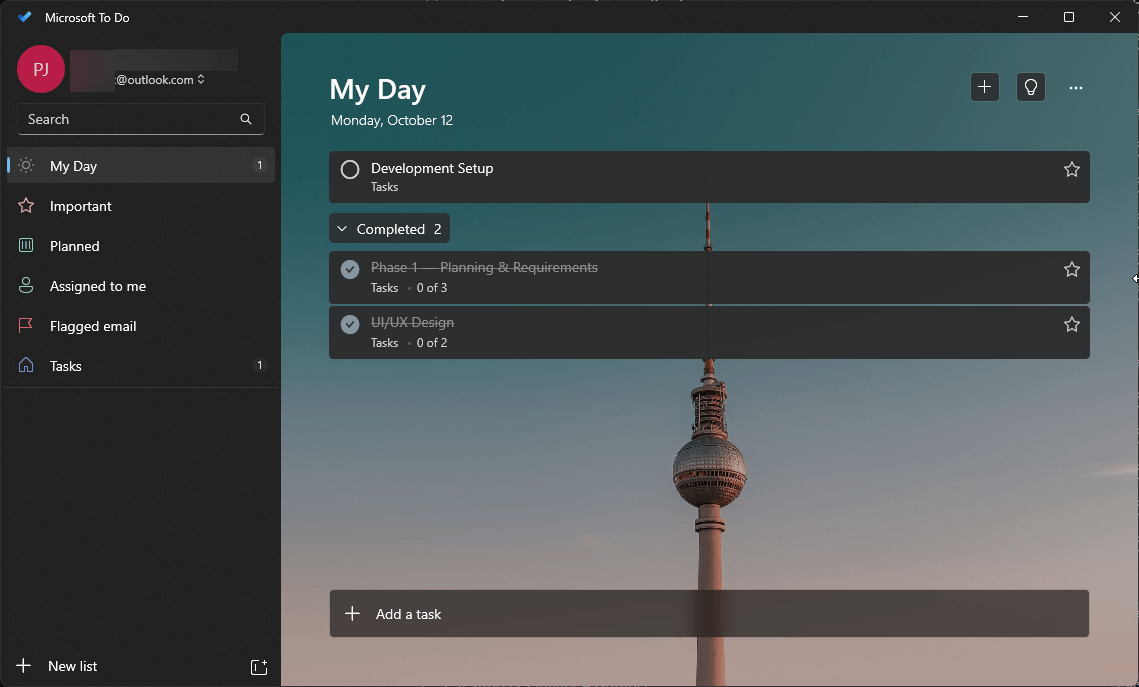
The My Day feature helps you focus on today’s tasks and reminders, recurring due dates, shared lists, and subtasks help you plan your day. Microsoft also notes how To Do integrates with Outlook tasks.
Key features
- Create separate lists for work, home, and personal responsibilities.
- Use My Day to organize your daily priorities.
- Set one-time and recurring reminders.
- Break larger tasks into smaller steps.
- Share lists with colleagues, family members, or friends.
- Synchronize supported tasks with Outlook.
Who should use Microsoft To Do?
Imagine you wake up with a couple of work tasks and a long list of personal duties. You can keep those things in separate lists and select the most important ones for My Day.
If you already use Outlook, you can be more organized about your responsibilities across devices with connected supported tasks.
Possible limitation: Microsoft To Do is purposely simple. If you want advanced project dashboards, deep task analytics or complex dependencies, you may want a more specialized tool.
Pricing: Microsoft To Do is free and on Android and many other major platforms.
Visit website: https://to-do.office.com
5. Notion: Best for Notes, Documents, and Project Organization
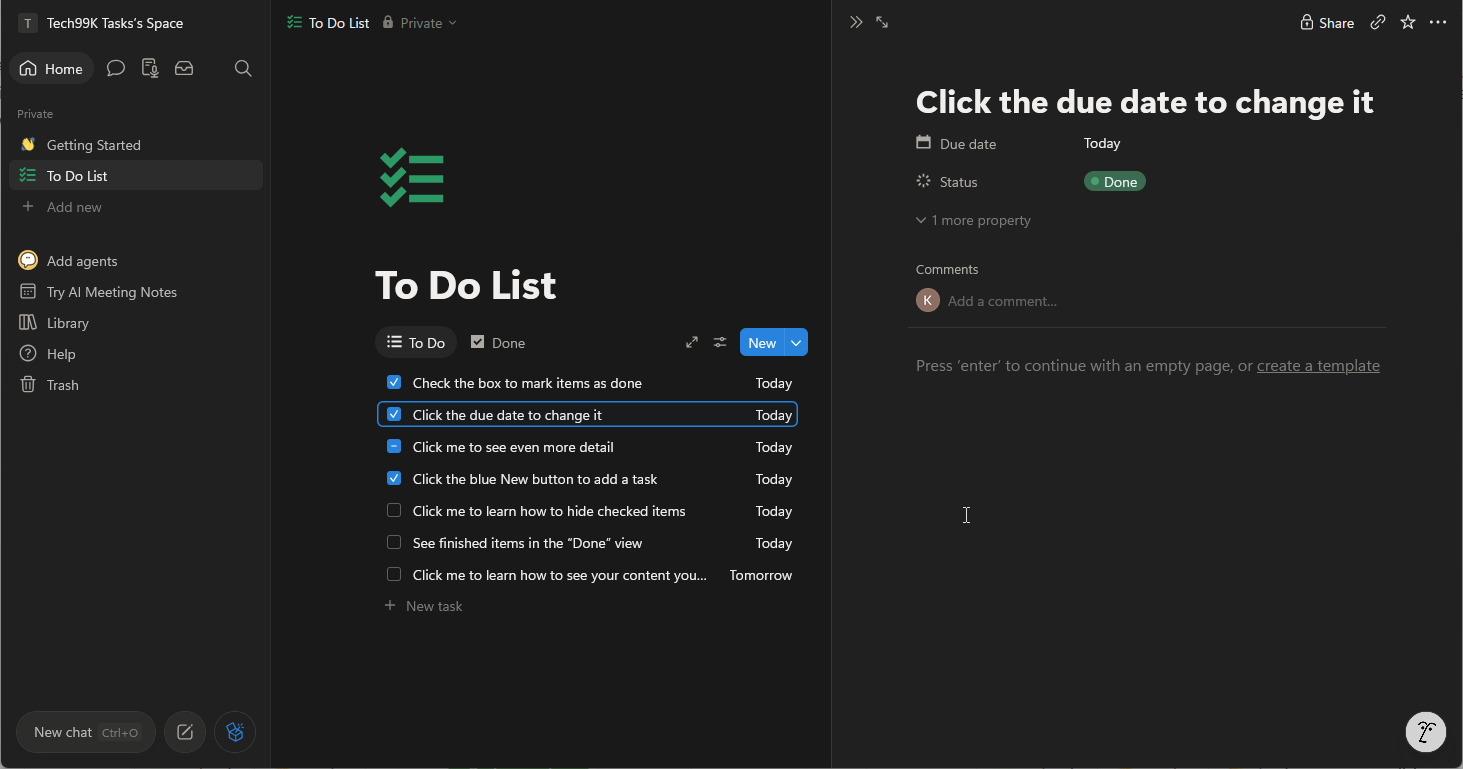
Notion is more expansive in its approach to productivity. It combines documents, notes, databases and workspace organization and is useful when information needs to be connected rather than remaining isolated tasks.
It can be used to maintain project documentation, create a personal knowledge base, keep study notes or to create a structured workspace for ongoing projects.
Key features
- Create documents and organized notes.
- Use databases to structure information.
- Organize projects and related resources.
- Collaborate in shared workspaces.
- Connect supported tools and services.
Who should use Notion?
Notion can be helpful for a student organizing research, a content creator keeping an editorial calendar, or a professional keeping project notes and reference material together.
For example, a blogger can create a content database with ideas of articles, publication dates, links to drafts and statuses of progress. This is more flexible than creating a new note for each idea.
Possible limitation: Notion takes more setup than a simple to-do list. Its flexibility may be a drawback if you spend more time designing your workspace than doing tasks. Some features (collaboration and advanced features) also depend on the subscription plan.
Price: Free for personal use. Paid plans provide extra features. You can get Plus package for USD $10 per member/month. Check the official pricing page for the most recent terms.
Official website: https://www.notion.com/
How to Choose the Right Productivity App for Android
The best option is the one that fits your actual routine. Before installing several apps, identify the main problem you want to solve.
Choose a task manager if you forget deadlines
Start with Todoist, TickTick, or Microsoft To Do. These apps are more suitable for managing tasks, reminders, and responsibilities than a basic notes app.
Choose an all-in-one workspace for complex projects
Notion is worth exploring when you need documents, databases, and project information connected in one place
Check the free plan before paying
See what’s included in the free plan. Not all of an app’s advertized features may be included in its free version. Before you subscribe, look at:
• How many lists, items, or projects you can create.
• If it includes calendar views and reminders.
• What features are in the paid plan?
• How well the app performs on your other devices.
• The subscription price and renewal conditions for your region.
You don’t have to pay for a subscription to get more organized. A cheap system you hardly ever open is less useful than a simple free app you use all the time.
Tips for Getting More Done With Productivity Apps
Getting an app installed is the easy part. Equally important is how you use it.
1. Begin with one app. Pick the tool that solves your biggest problem. Don’t spread your tasks across multiple apps unless you have a good reason to do so.
2. Check your tasks every morning. Select a realistic number of priorities, instead of an overwhelming list.
3. Use reminders only when needed. Create reminders for deadlines and time-sensitive duties. Too many notifications can be a distraction.
4. Break big tasks into smaller steps. Instead of writing “complete project”, list the next concrete steps. Smaller things are easier to plan and check on.
5. Secure your information. Check app permissions and privacy settings. Use a strong password to secure your account and turn on two-step verification where available. Don’t add sensitive information to shared notes or public workspaces without knowing access settings.
6. Weekly system review. Delete completed items, adjust due dates, and archive items no longer needed.
Frequently Asked Questions
What’s the best productivity app for Android in 2026?
It is contingent upon what you want. Todoist is a solid choice for structured task management, TickTick blends tasks and planning, is excellent for quick notes, Microsoft To Do is handy for daily planning, and Notion provides a flexible workspace.
What are free Android productivity apps?
Microsoft To Do is good free starting points. Todoist, TickTick, and Notion also have free plans, but some features and usage limits differ.
What is the best productivity app for students on Android?
Todoist or TickTick work well for assignments and deadlines. If you want to organize longer study notes and research materials, Notion is worth a look.
Can I use productivity apps on both my phone and PC?
The apps in this guide work cross-platform or have other ways to access your information besides Android. Check the official documentation of each developer to know supported devices, synchronization requirements and account limitations.
Are productivity apps secure?
Some reputable apps can offer helpful security features, but no app should be considered completely safe just because it is in an official store. Check the developer’s privacy policy, check the permissions, secure your account and be cautious about sharing sensitive information.
Is it worth paying for a productivity app?
Not quite. Try the free version first and see if the limitations are a barrier to getting your tasks done. Upgrade only when a particular paid feature provides enough value to justify the price.
Conclusion
The best Android productivity apps help you spend less time organizing your tasks and more time actually doing them.
Try Microsoft To Do or Todoist for task management day-to-day. If you’re looking for more planning features, then TickTick is worth a look, though Notion is better for people who need a flexible workspace. If you are looking a good productivity app that allows you to visually organize your tasks and projects using boards, lists, and cards the Trello is a good option.
Pick an app, add your top priorities, and stick with it for a week. Once you know what works for you, then you can make a decision if you need some more features or some other tool.
The aim is not to collect productivity apps. It’s about making your everyday life easier with a system.