


Table of Contents
Having trouble connecting your laptop to Wi-Fi, or is Windows 11 showing you “No Internet”? Your router, wireless adapter, or Windows network settings may be the problem. Seven solutions to try below to find out the cause and get back online.
1 Check Your Wi-Fi and Router
First, make sure other devices, like your smartphone, are able to connect to the same Wi-Fi network. If devices are unable to connect, reboot your router. If There Is a Problem Only on Your Windows 11 PC, Follow the Steps Below Ensure Airplane mode is turned off and Wi-Fi is enabled.
Restart your router: Unplug the power cable, wait about 30 seconds, and plug it back in. Wait a few minutes for it to reconnect.

2 Run the Windows Network Troubleshooter
Windows includes troubleshooting tools that can identify common network problems.
1. Open Settings by pressing Windows + I.

2. Select System > Troubleshoot > Other troubleshooters.


3. Find Network and Internet and select Run, if available.


Follow the on-screen instructions and apply any recommended fixes.
3 Forget and Reconnect to Wi-Fi
Saved network settings can sometimes cause connection issues.
Open Settings > Network & internet > Wi-Fi.
Select Manage known networks.
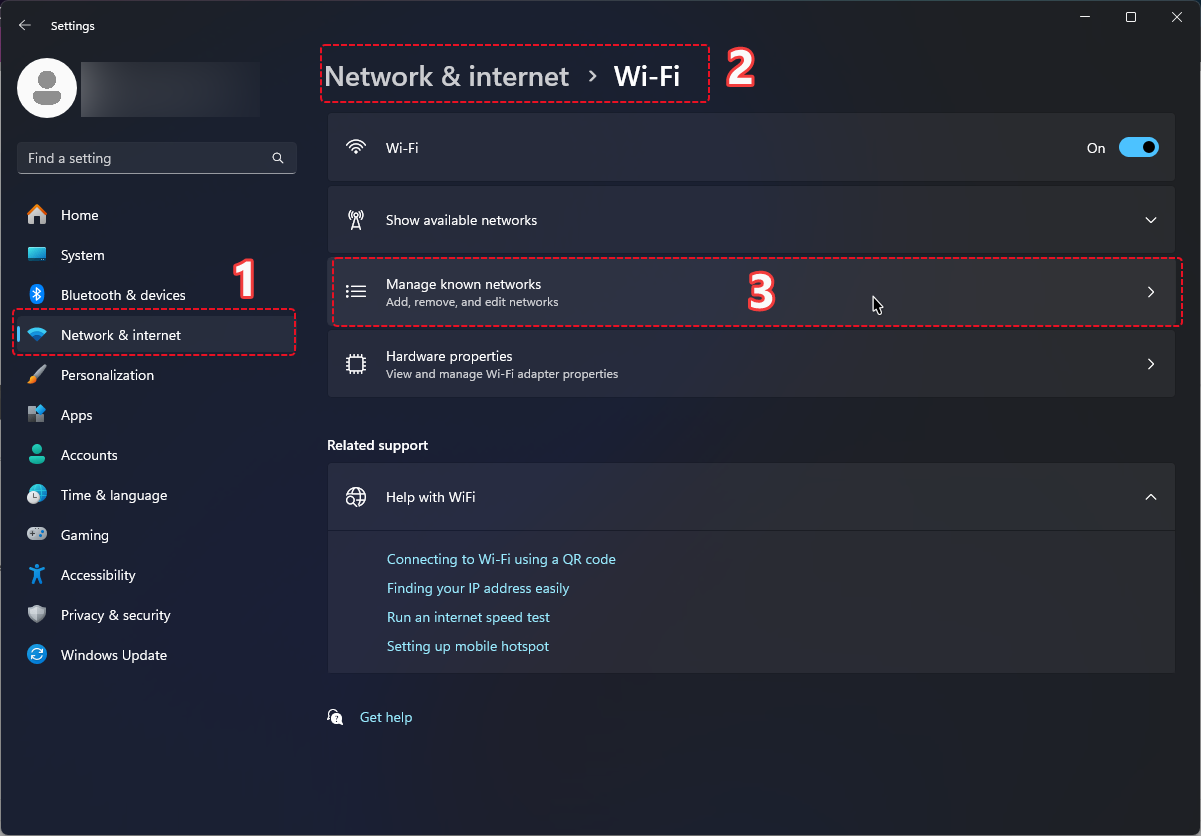
Choose your Wi-Fi network and click Forget.

Reconnect to the network and enter your Wi-Fi password.
Make sure you have the correct password before forgetting the network.
4 Update Your Wi-Fi Driver
A network driver allows Windows to communicate with your wireless adapter.
Right-click Start and open Device Manager.
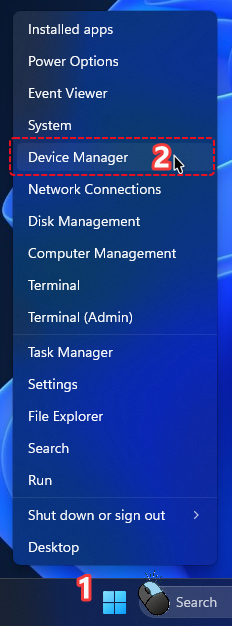
Expand Network adapters.

Right-click your wireless adapter and select Update driver.
Choose Search automatically for drivers.

If Wi-Fi stopped working after a driver update, check the adapter’s Properties > Driver tab for the Roll Back Driver option.

5 Restart the Wi-Fi Adapter
In Device Manager, right-click your wireless adapter and select Disable device. Wait a few seconds, then right-click it again and select Enable device.

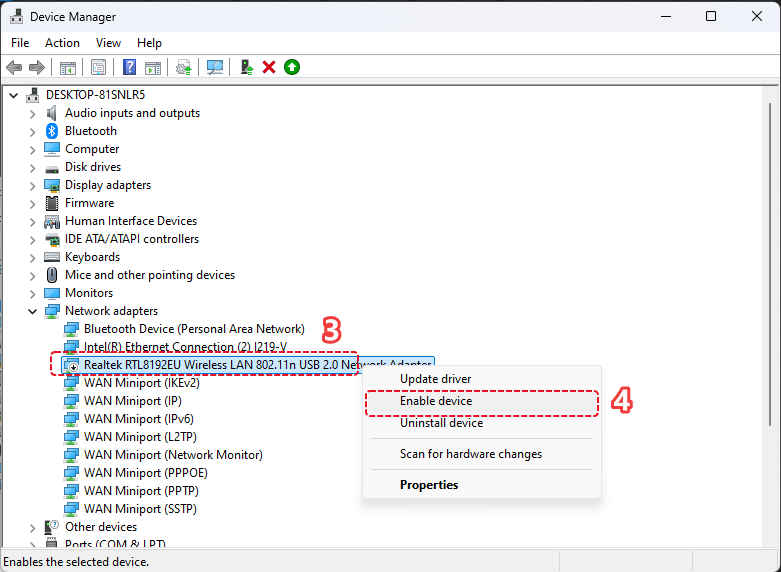
If the Wi-Fi adapter is missing entirely, check whether it is disabled in your device’s settings or whether a driver needs reinstalling.
6 Reset Windows Network Settings
If nothing else works, open Settings > Network & internet > Advanced network settings > Network reset and select Reset now.
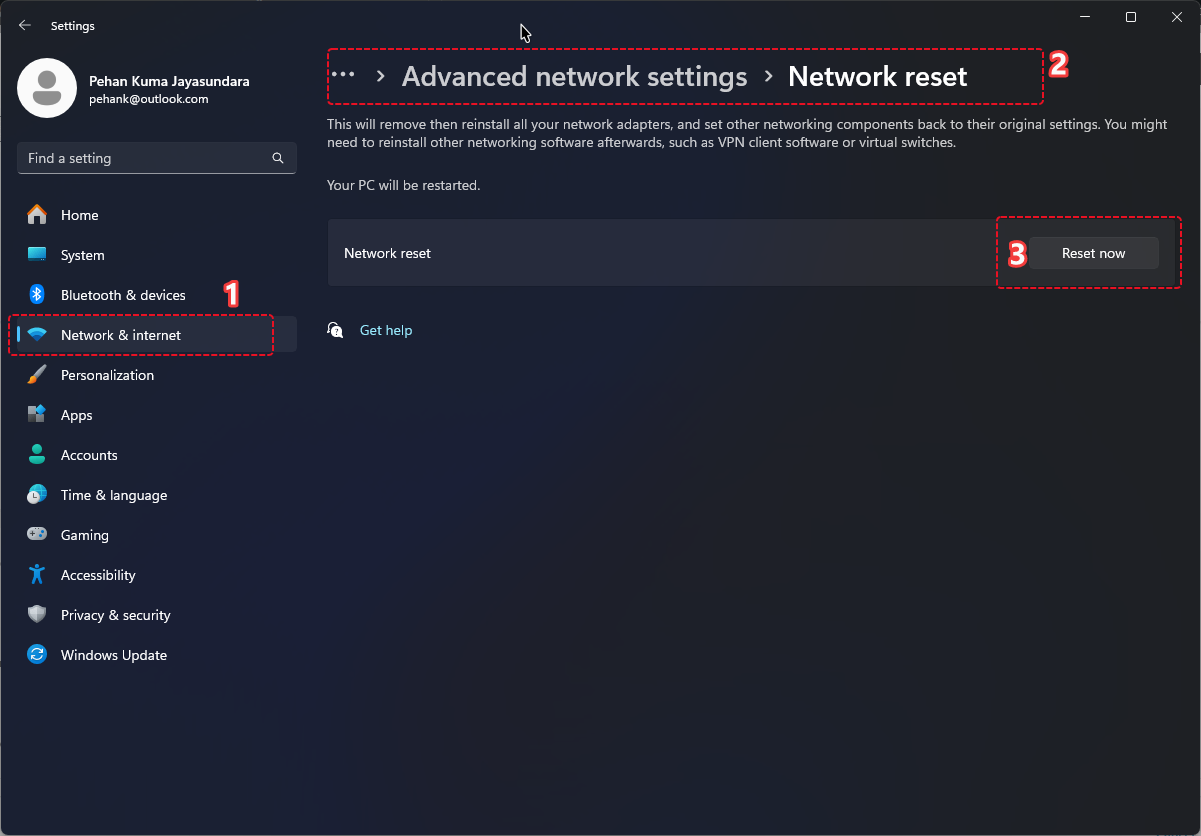
Warning: This will remove and re-install network adapters and reset network settings. You may have to reconnect to Wi-Fi and set up VPN software again.
7 Check for Windows Updates
Go to Settings > Windows Update and select Check for updates. Install relevant updates and restart your PC if prompted.

Summary
First, check your router if Windows 11 Wi-Fi is not working. Troubleshoot the connection and wireless adapter. Save a network reset as a last resort, as it can delete existing network configurations.
8 FAQ
Why is Wi‑Fi option missing on Windows 11?
Check Airplane mode, Device Manager, and your wireless adapter’s driver. If the adapter is not recognized, you may have a hardware or driver issue.
Wi-Fi connects but no internet – why?
Restart your router and PC and see whether other devices can connect to the Internet. If neither can , contact your internet service provider if the problem persists .
Does Resetting Network Settings Remove My Files?
No. Network reset is not the same as factory reset. However; it will remove network settings and you may have to reconnect to networks as well as reconfigure your VPN settings.
You may need to read: Troubleshoot Windows Internet Problem