
• Privacy & Policy
  • About Us
  • Disclaimer
  • Contact Us
Wednesday, November 18, 2026
The Latest Technology Insights | Tech99K.COM
  • Home
  • AI
  • TECH
  • CYBERSECURITY
  • GADGETS
  • HOW-TO
  • INTERNET
  • REVIEWS
No Result
View All Result
  • Home
  • AI
  • TECH
  • CYBERSECURITY
  • GADGETS
  • HOW-TO
  • INTERNET
  • REVIEWS
No Result
View All Result
The Latest Technology Insights | Tech99K.COM
No Result
View All Result
Home How-To

How to Create AI Images From Text for Free

October 22, 2026
in How-To, AI & Machine Learning, AI Tools, AI Tutorials, Generative AI
A A
0
How to Create AI Images From Text for Free

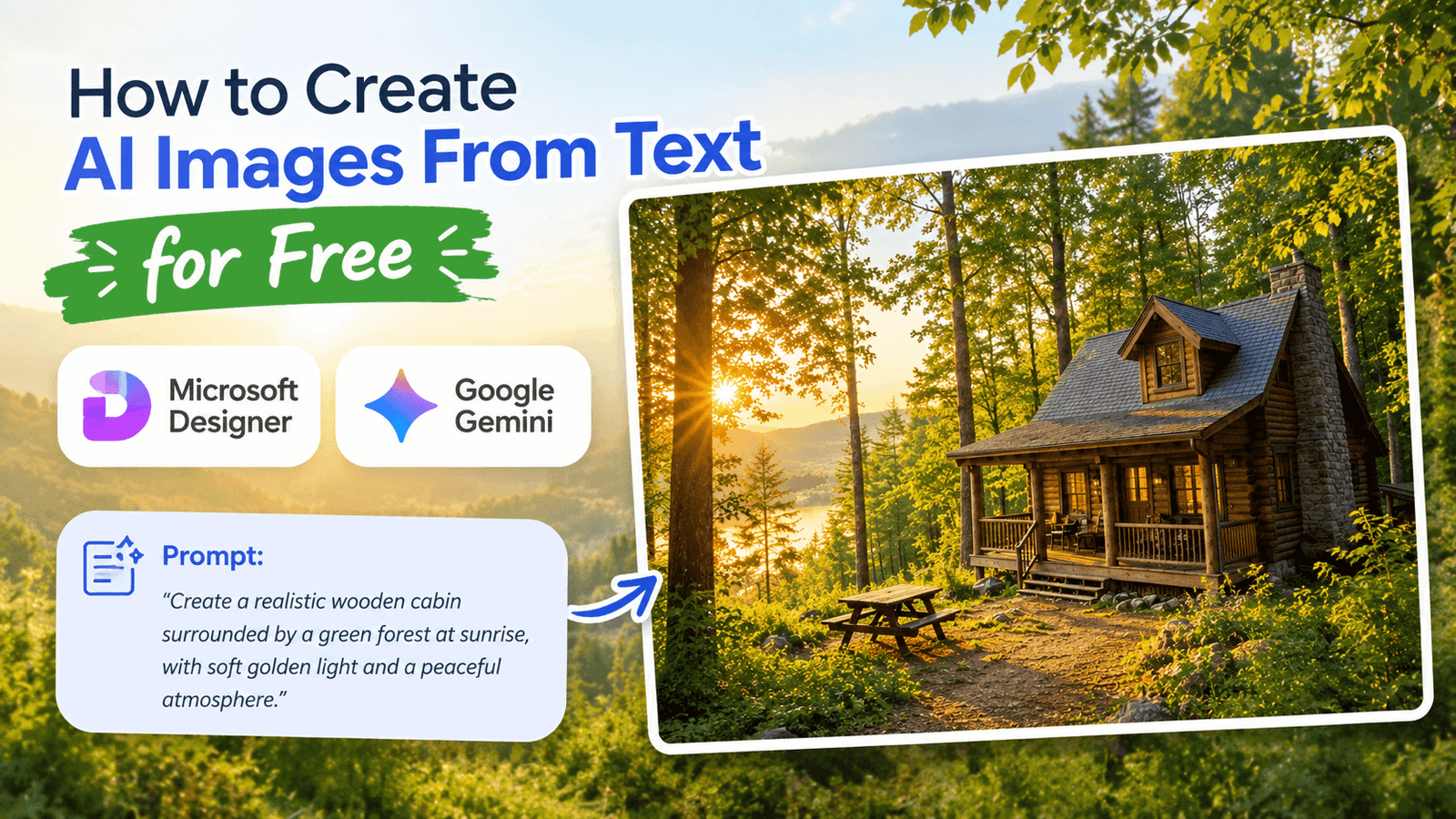
Want to create AI images for free without learning graphic design or spending money on expensive software? You can create free AI images by describing what you want in a few words. Tools like Microsoft Designer and Google Gemini can take text descriptions and generate digital art, illustrations, and other visual images.

What Is an AI Image Generator?

An AI picture generator is an application that creates pictures from text prompts. These instructions are known as prompts. Describe a person, a landscape, a product, or an imaginary scene, and the AI will generate an image based on your description.

How to Create AI Images for Free

Microsoft Designer is an easy starting point for beginners. It offers free image creation, although usage limits may apply.

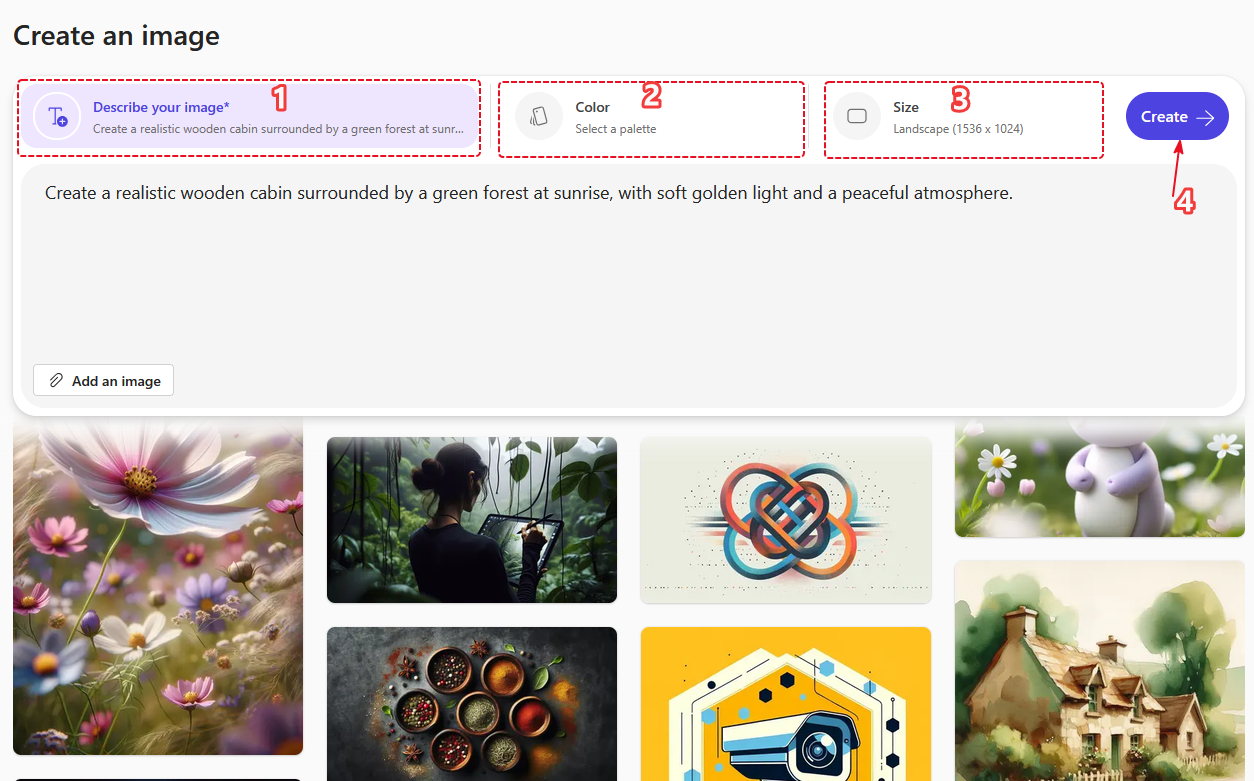
  1. Open the image generator.

Visit the Microsoft Designer website in your browser and sign in with your Microsoft account.

create AI images for free

1. Click on “Describe your image” to enter your prompt. 2. You can select the colors if you have a preferred color collection. 3. Click on size to change the final output image size. At the moment, there are 3 sizes.

4. Click the Create button to generate your image.
  1. Write a clear prompt.

Describe the subject, setting, colors, and style you want. For example:

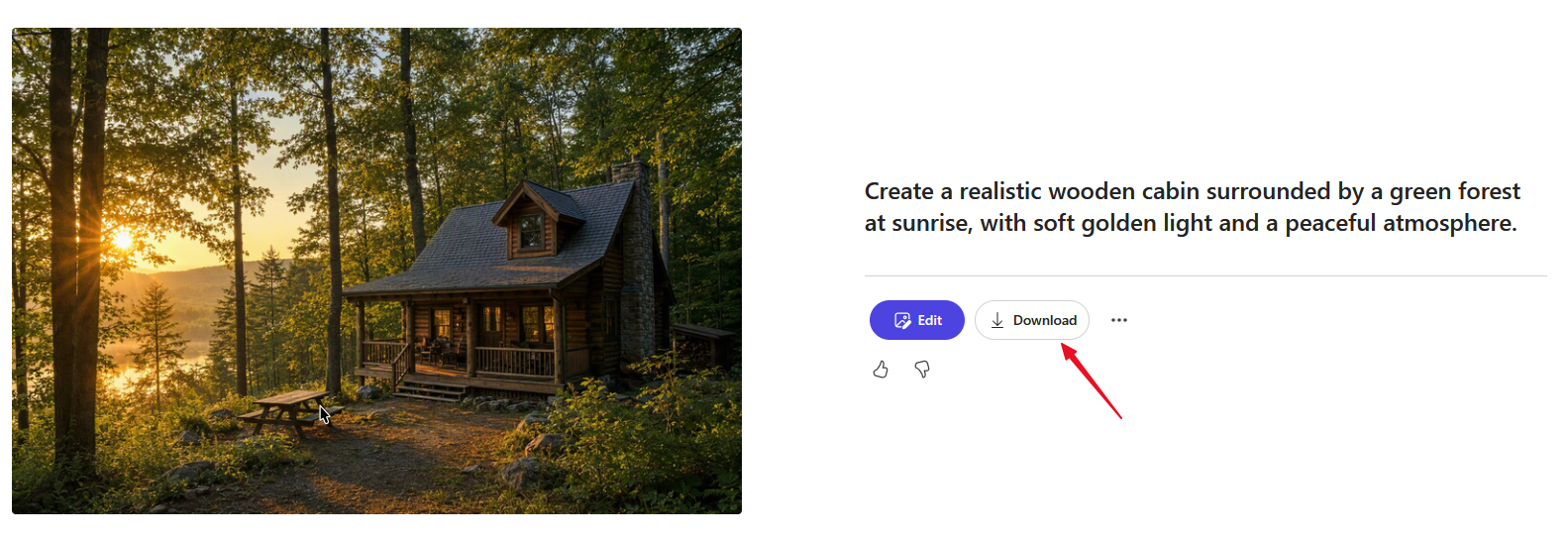
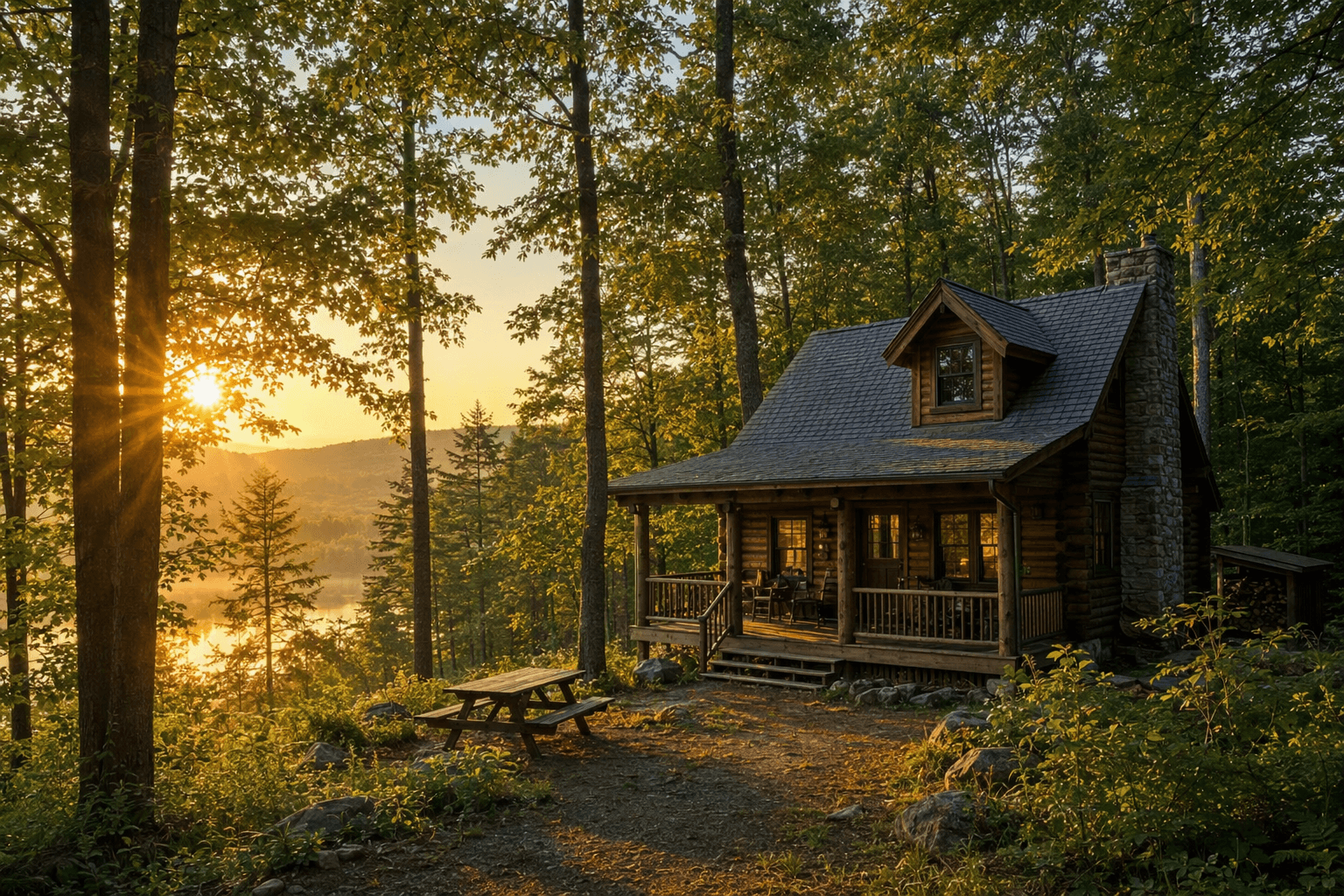
“Create a realistic wooden cabin surrounded by a green forest at sunrise, with soft golden light and a peaceful atmosphere.”

  1. Generate your image.

Enter your prompt and select the Create or Generate option. Review the results and adjust your description if the images are not what you expected.


  1. Download the result

Choose your preferred image and download it to your computer or phone. You can then use it for suitable personal projects, presentations, or online content, subject to the tool’s terms.
Tips for Getting Better AI Images

A more detailed prompt usually gives the AI better direction. Instead of “a cat” try “a fluffy orange cat sitting beside a window on a rainy afternoon, realistic photography style”.
You can also try Google Gemini, which has text based image generation. Visit Gemini and tell us what picture you want. Limits on availability and use may differ depending on account and location.

Common mistake: Expect AI to replicate every detail perfectly, especially text elements in images. Before you publish your image, check it for spelling, faces and little details.

If you want to use the AI images for commercial purposes, please make sure to read the usage terms of the tool and avoid any prompt or upload that violates the rights of others.
Conclusion

Generate AI images for free without costly software or advanced design skills. Experiment with various descriptions until you find an image that you like. Start with Microsoft Designer and write a clear prompt.

Frequently Asked Questions

  1. Can I create AI images for free without design skills?

Yes. Beginner-friendly tools such as Microsoft Designer let you generate images from text descriptions without requiring graphic design experience.

  1. Can I create AI images on my phone?

Yes. You can use compatible image-generation tools through a mobile browser or supported app. Gemini, for example, supports image generation on Android.

  1. Can I use AI-generated images on my website?

Often, yes, but the rules depend on the tool and the intended use. Review the provider’s terms, particularly for commercial use, copyright, and attribution requirements.

Tags: AIGoogle GeminiImage GenerateMicrosoft Designer
Share1Tweet1Share

More Articles

Gaming PC setup
Troubleshooting

How Much RAM Do You Really Need in 2026?

November 11, 2026
Windows 11 is Running Slow? Disable These Startup Apps to Speed Up Your PC
Windows Guides

Windows 11 is Running Slow? Disable These Startup Apps to Speed Up Your PC

November 1, 2026
Photos app Windows 11
Windows Guides

Meet the New Photos App in Windows 11: What’s New in 2026

October 29, 2026
Next Post
The Best Laptops of 2026: Top Picks for Work, Study, and Gaming

The Best Laptops of 2026: Top Picks for Work, Study, and Gaming

  • Trending
  • Comments
  • Latest
ChatGPT for Beginners: Everything You Need to Know

ChatGPT for Beginners: Everything You Need to Know

October 3, 2026
Windows 11 Security Settings Guide

Windows 11 Security Settings You Should Enable

October 4, 2026
How to Troubleshoot Windows Internet Problems: A Complete Guide

How to Troubleshoot Windows Internet Problems: A Complete Guide

October 4, 2026
Google Fitbit Air: A screen-free tracker for people who want to minimize distractions.

Google Fitbit Air: A screen-free tracker for people who want to minimize distractions.

October 6, 2026
ChatGPT for Beginners: Everything You Need to Know

ChatGPT for Beginners: Everything You Need to Know

0
Windows 11 Security Settings Guide

Windows 11 Security Settings You Should Enable

0
How to Troubleshoot Windows Internet Problems: A Complete Guide

How to Troubleshoot Windows Internet Problems: A Complete Guide

0
Google Fitbit Air: A screen-free tracker for people who want to minimize distractions.

Google Fitbit Air: A screen-free tracker for people who want to minimize distractions.

0
Gaming PC setup

How Much RAM Do You Really Need in 2026?

November 11, 2026
Best 5 Gaming Laptops in 2026: Top Picks for Every Budget and Gamer

Best 5 Gaming Laptops in 2026: Top Picks for Every Budget and Gamer

November 3, 2026
Windows 11 is Running Slow? Disable These Startup Apps to Speed Up Your PC

Windows 11 is Running Slow? Disable These Startup Apps to Speed Up Your PC

November 1, 2026
Photos app Windows 11

Meet the New Photos App in Windows 11: What’s New in 2026

October 29, 2026

Recent News

Gaming PC setup

How Much RAM Do You Really Need in 2026?

November 11, 2026
Best 5 Gaming Laptops in 2026: Top Picks for Every Budget and Gamer

Best 5 Gaming Laptops in 2026: Top Picks for Every Budget and Gamer

November 3, 2026
Windows 11 is Running Slow? Disable These Startup Apps to Speed Up Your PC

Windows 11 is Running Slow? Disable These Startup Apps to Speed Up Your PC

November 1, 2026
Photos app Windows 11

Meet the New Photos App in Windows 11: What’s New in 2026

October 29, 2026
The Latest Technology Insights | Tech99K.COM

TECH99K.COM delivers the latest technology, AI, cybersecurity, gadgets, software, and digital trends, helping readers explore new technologies, learn practical insights, and use technology smarter every day.

Follow Us

Browse by Category

  • Accessories
  • AI & Machine Learning
  • AI News
  • AI Tool Reviews
  • AI Tools
  • AI Tutorials
  • Apps Review
  • Cybersecurity
  • Gadget Review
  • Gadgets
  • Generative AI
  • How-To
  • Internet & Web
  • Laptops
  • Networking
  • Online Safety
  • Privacy
  • Review
  • Smartwatches
  • Tech
  • Troubleshooting
  • Web Technology
  • Websites
  • Windows Guides

Recent News

Gaming PC setup

How Much RAM Do You Really Need in 2026?

November 11, 2026
Best 5 Gaming Laptops in 2026: Top Picks for Every Budget and Gamer

Best 5 Gaming Laptops in 2026: Top Picks for Every Budget and Gamer

November 3, 2026
  • Privacy & Policy
  • About Us
  • Disclaimer
  • Contact Us

© 2026 TECH99K - The Latest Technology News, Guides & Tips.

No Result
View All Result
  • Home
  • AI
  • TECH
  • WINDOWS
  • HOW-TO
  • CYBERSECURITY

© 2026 TECH99K - The Latest Technology News, Guides & Tips.